

eFit has three assignment types. The one that matters most is the Activity Tracker, because it is what turns your students' daily steps and active minutes into a grade. A course without it cannot grade anyone.
The three types
| Type | What it does | Dates it needs |
|---|---|---|
| Activity Tracker | Grades daily steps and active minutes. This drives the eFit grade. | Start and due date |
| Fitness Assessment | Opens the pre and post fitness tests. | Pre window and post window |
| Written Paper | A due date you can export to your LMS gradebook. | Due date |
Adding one
- Go to Course Setup > Assignments.
- Pick the assignment type and the points possible.
- Choose the course number, semester and year.
- Fill in the dates for that type.
- On the next screen, tick every section this should apply to.
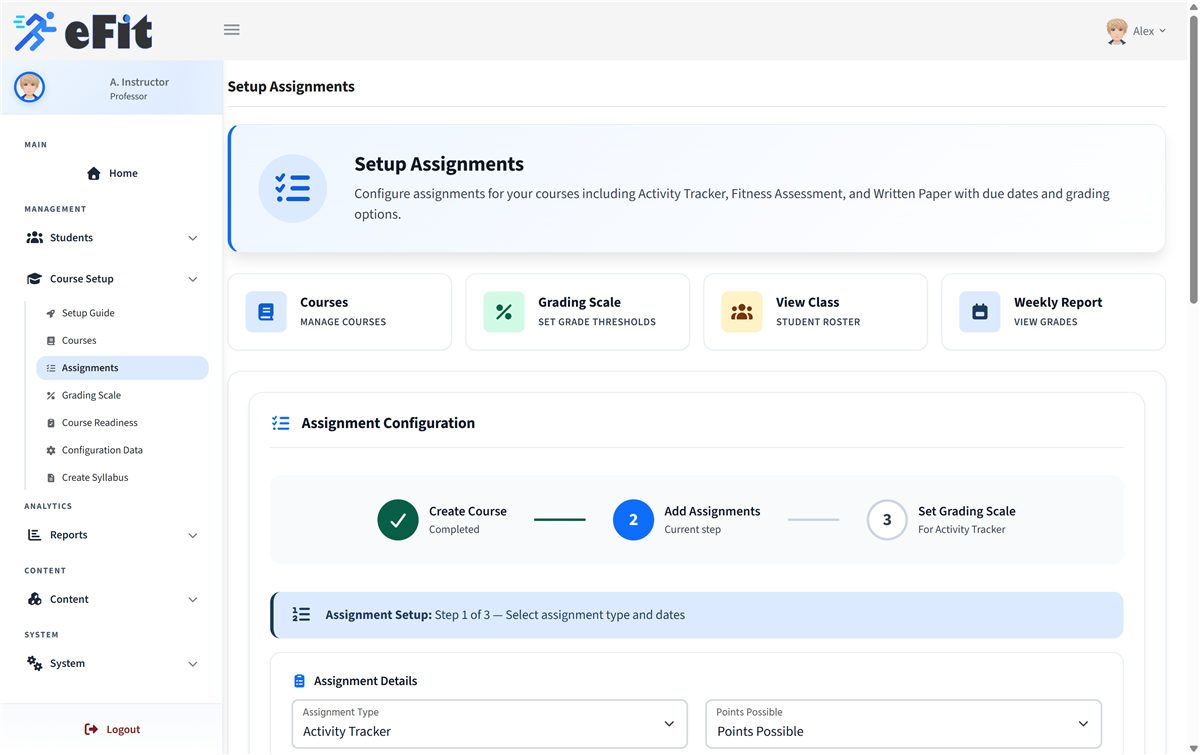
One pass covers all your sections. Step two lets you apply the same assignment and dates to every section at once, so you do not repeat this per section.
Graded days per week
The Activity Tracker has a graded days per week setting, which defaults to 5. That means a student is graded on their best 5 days out of 7, so two lighter days do not damage the grade. Lower it if you want to be more forgiving, raise it if you want to be stricter.
Re-saving replaces the assignment. Saving an assignment type again for a section deletes the old one and creates a fresh one. eFit re-points your grading scale automatically, but it is worth re-checking the readiness page afterwards.
Next: Set your grading scale, which decides what those steps and minutes are actually worth.