
When your steps or your activity grade look wrong, the question that settles it is always the same: on which dates does Google Health disagree with eFit, and by how much? A single screenshot can answer that, as long as it shows the step count for each individual day. This article shows you how to take that screenshot and how to run the comparison yourself before you send it.
The screenshot that lets us help you
- Open the Google Health app on your phone.
- Tap Steps.
- At the top of the Steps screen, choose Week (the W tab).
- The screen now shows the reported step count for every day of the week. Take your screenshot here, with the dates visible.
- If your question covers more than one week, page back a week at a time and take one screenshot per week.
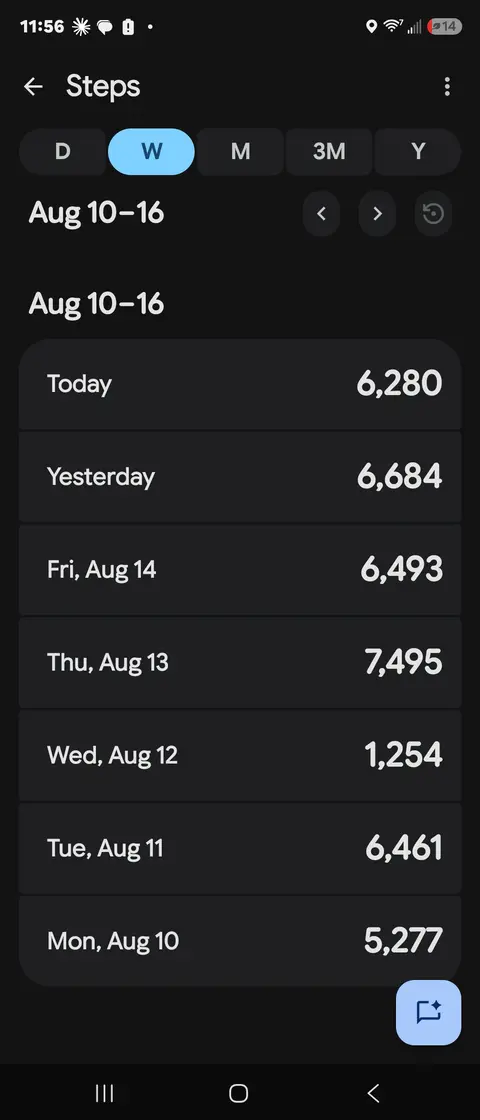
This Week view is the screen our support team and your instructor line up against eFit's daily records. With it, a discrepancy can usually be traced in one reply.
Run the comparison yourself first
- Open Activity Data in eFit, which lists the steps eFit received for each day.
- Hold it next to the Week view in Google Health and go date by date.
- Write down every date where the two numbers differ, along with both numbers.
If some days differ, submit a support ticket with those dates and your Week view screenshots attached, and we will trace what happened to them.
If every day matches, eFit has received your activity in full, and the place to look next is Understanding Your Weekly Activity Grade, which explains how those daily numbers turn into a score. Today's activity counts as soon as it syncs, and the week-in-progress figure only rises, so a number that looks low is waiting on days that have not reached eFit yet.
Screenshots that cannot be compared
These arrive on tickets every week, and none of them show daily step counts we can line up against eFit:
- The Google Health home screen. It shows today's total and some highlights. The per-day history lives under Steps, in the Week view.
- Your watch face or your tracker app. Those totals sit upstream of Google Health, and eFit reads from Google Health. A number on your wrist may never have completed the trip.
- Google Fit. Google Fit is a separate app that is being retired, and eFit reads from Google Health.
- Your eFit dashboard or grade screen on its own. We can already see everything eFit recorded. The missing half of the comparison is what Google Health holds.
Related articles
- Understanding Your Weekly Activity Grade
- Your Activity Shows on Your Phone but Not in eFit
- Refresh My Activity: Sync Your Steps on Demand
- Open the Google Health App Regularly to Keep Your Data Flowing
Do I need to export my Google Health data?
No. The Week view screenshot is what support compares against eFit, day by day. If an older reply asked you for a data export, the Week view screenshot answers it.
A Google data export contains totals by source app and by day in a spreadsheet, with no per-day screen you can check against eFit yourself, and it takes hours to arrive. The Week view shows the same daily numbers on your phone in a few seconds.