Before you start
What you need
Setting up takes about ten minutes. Have these ready and you can do it all in one sitting.
| You need | Why |
|---|---|
| Your eFit Fitness Tracker watch, and a USB port or USB wall adapter | The watch counts your activity. It charges through a USB plug built into the watch, so there is no cable to lose. |
| An Android phone with Android 9 or newer and Bluetooth | The eFit app runs on the phone and reads the watch over Bluetooth. |
| Your eFit sign-in (the one you use on efit.health) | It links the watch to your class, so your activity counts. |
| Your date of birth saved on your efit.health profile | The app works for students age 13 and older and checks this before it sends anything. |
| Wi-Fi or mobile data now and then | The phone needs internet to send your activity to eFit. It saves everything until then. |
The short version
- Charge the watch until the battery is full.
- Install the eFit app from Google Play and open it.
- Connect my band: the app finds your watch over Bluetooth.
- Connect your eFit account with a pairing code from efit.health.
- Wear it every day, day and night. The app sends your activity to your class on its own.
Chapter 1
Meet your watch
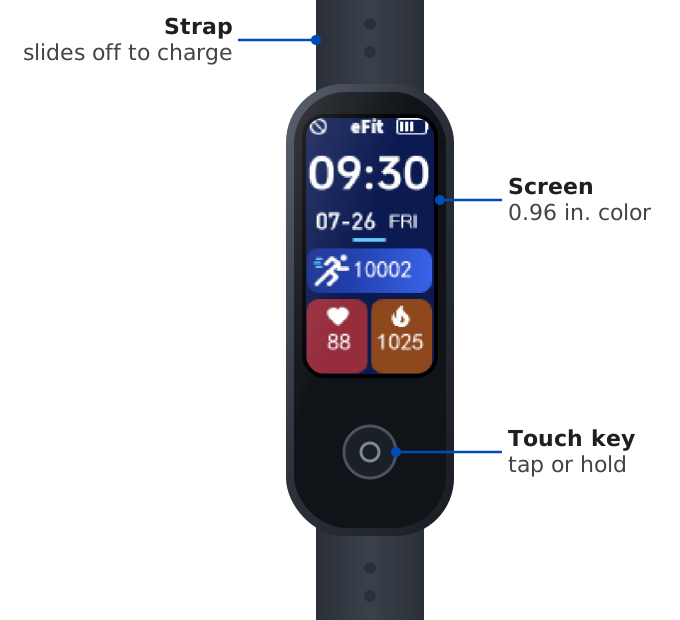
Your watch is light (about 22 grams), water resistant, and runs for up to 12 days on a charge. It measures your activity all day and keeps the last 7 days until your phone reads them.
Using the touch key
| Do this | What happens |
|---|---|
| Raise your wrist, or tap the touch key | The screen wakes and shows the time. |
| Tap the touch key | Move to the next screen: steps, heart rate, workouts, messages and more. |
| Hold the touch key for about 2 seconds | Open or start the screen you are on, such as a workout. |
| Hold the touch key during a call | Decline the call. Answer calls on your phone. |
What the watch measures
| Measurement | How it works | Where you see it |
|---|---|---|
| Steps | A motion sensor counts every step, all day. | Watch, app Home, efit.health |
| Distance and calories | Estimated from your steps, height, weight and sex. | Watch, app Home |
| Heart rate | An optical sensor on the back reads your pulse every few minutes, and during workouts. | Watch, app Heart rate, efit.health |
| Workouts | Start one of up to 25 sports on the watch. It records time, steps and heart rate. | App Home, efit.health |
| Sleep | Wear the watch to bed. It estimates light, deep and REM sleep. | App Sleep (phone only) |
| Blood oxygen | A general wellness estimate from the same sensor. | App Home (phone only) |
Chapter 2
Charge your watch
Charge the watch fully before you set it up. A full charge lasts up to 12 days, depending on how you use it.
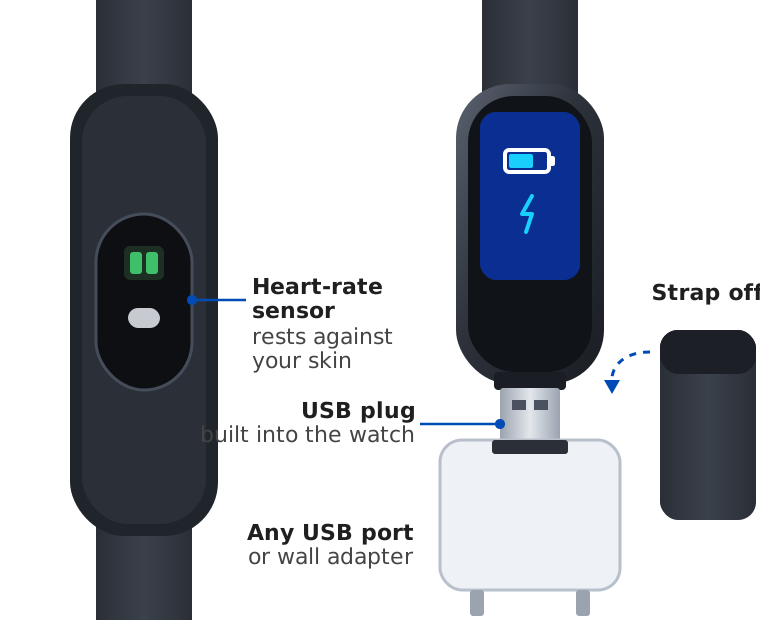
Take off the strap
Hold the watch body and pull the strap off one end. A USB plug sticks out of the watch where the strap was.
Plug the watch into USB
Push the plug into a computer's USB port or a USB wall adapter. It fits only one way: if it does not go in, turn the watch over and try again.
Wait until the battery is full
Leave it plugged in until the battery icon is full. You can check the battery level in the app: it shows on the Band tile and the Battery tile on Home.
Put the strap back on
Slide the strap over the plug until it sits flush with the watch.
Chapter 3
Wear it the right way
A good fit gives you accurate steps and heart rate.
- Wear the watch on the top of your wrist, about one finger's width above your wrist bone.
- Fasten the strap snug enough that the sensor on the back stays against your skin, with room to slide one finger under it.
- Tighten it a little for workouts, and loosen it again afterward.
- Wear it to bed if you want sleep and resting heart rate. Sleep shows in the app after the morning sync.
- Either wrist works. Many people wear it on the wrist they do not write with.
Water and sweat
The watch is rated IP67: rain, sweat, splashes and hand washing are fine. Take it off for swimming, hot showers, hot tubs and saunas. Rinse it with fresh water after heavy sweating and let it dry.
Changing the strap
Pull the strap off the watch body the same way you do to charge it. Slide the new strap on until it sits flush with the watch.
Chapter 4
Install the eFit app
Install the app on the Android phone you carry every day.
Open Google Play
Search for eFit. The app icon is the blue running man.
Tap Install, then Open
The app opens to Set up eFit.
Permissions the app asks for
eFit asks for each permission only when you turn on the feature that needs it.
| Permission | Why eFit asks | Needed? |
|---|---|---|
| Nearby devices | To find your watch and read it over Bluetooth. | Yes |
| Notifications | For reminders when your activity has not reached eFit for 2 days, and the small notice Live sync shows. | Recommended |
| Notification access | To show messages from the apps you choose on your watch. | Only for alerts |
| Phone | To show who is calling and decline a call from the watch. | Only for call alerts |
| Run in the background | So sync and alerts keep working while eFit is closed. | Recommended |
Chapter 5
Connect your watch
This links the watch to the app on your phone. Keep the watch charged and right next to the phone.
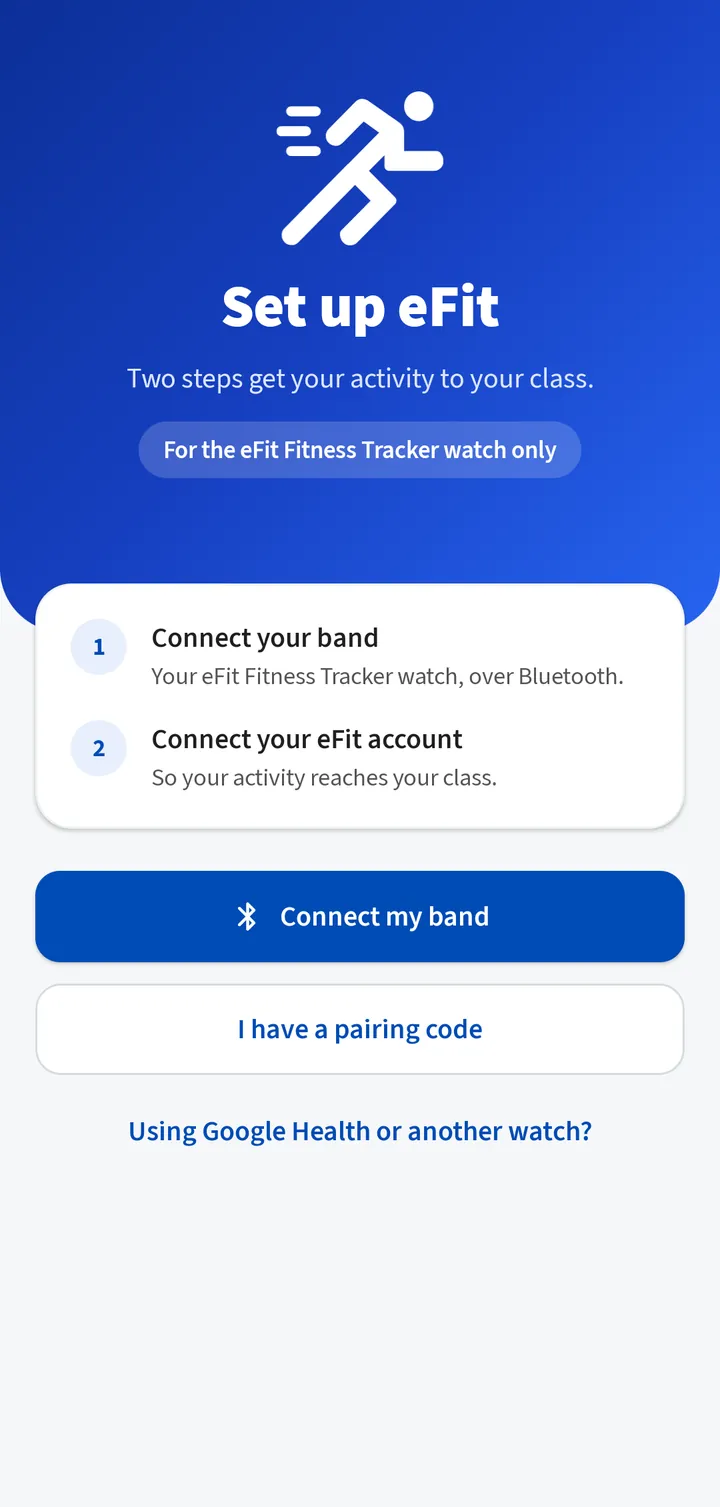
Tap Connect my band
On Set up eFit, tap Connect my band.
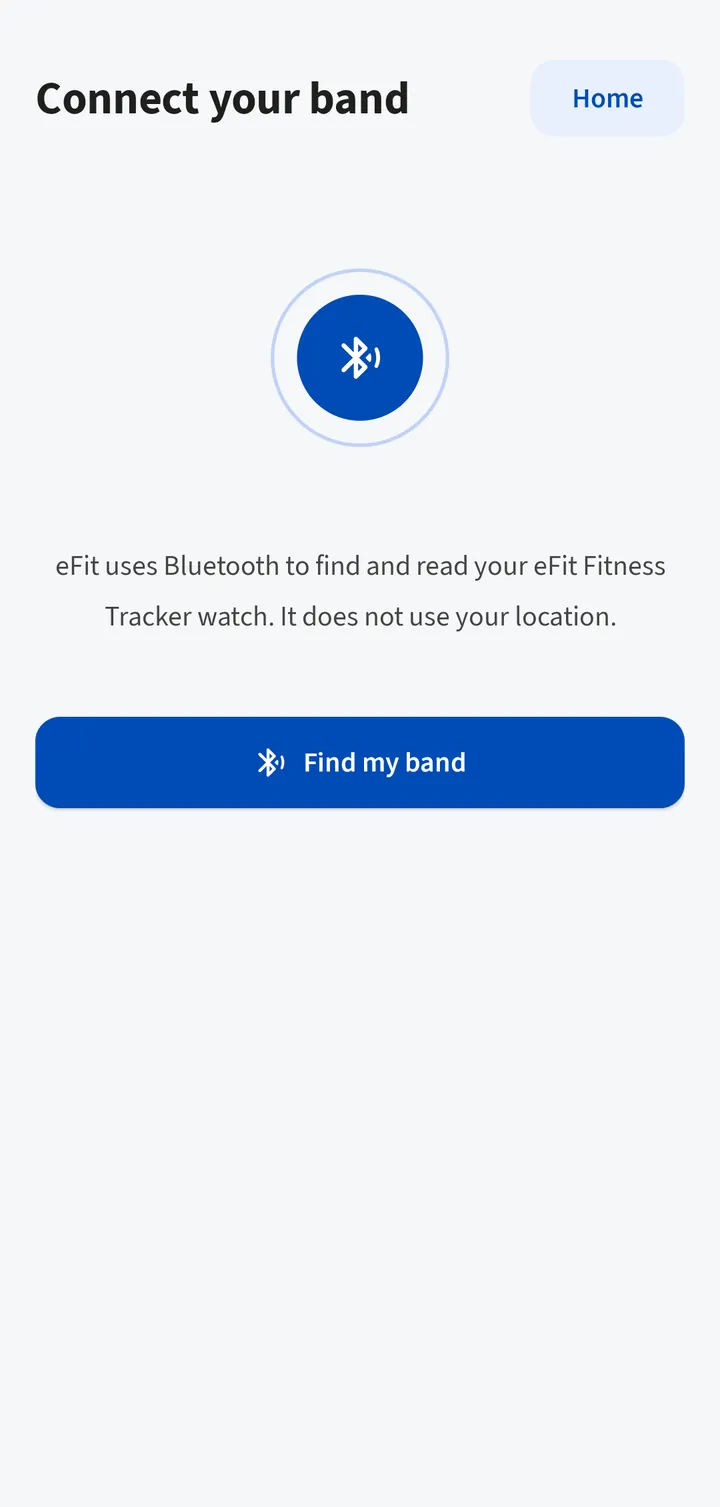
Tap Find my band
If Android asks to let eFit find nearby devices, tap Allow. If Bluetooth is off, the app asks you to turn it on.
Tap Connect next to your watch
Your watch shows as eFit Fitness Tracker with four characters after it. The closest watch is at the top, marked Very close. Tap the screen of your watch first so it is awake.
Tell the watch about you
Enter your height, weight, age and sex, then tap Save and continue. The watch uses them to estimate calories and distance. You can change them later under Settings › About you.
See “Your band is working.”
The app shows today's steps and the battery level, then reads the last 7 days from the watch. If your account is not connected yet, tap Connect your eFit account.
If the app does not find your watch
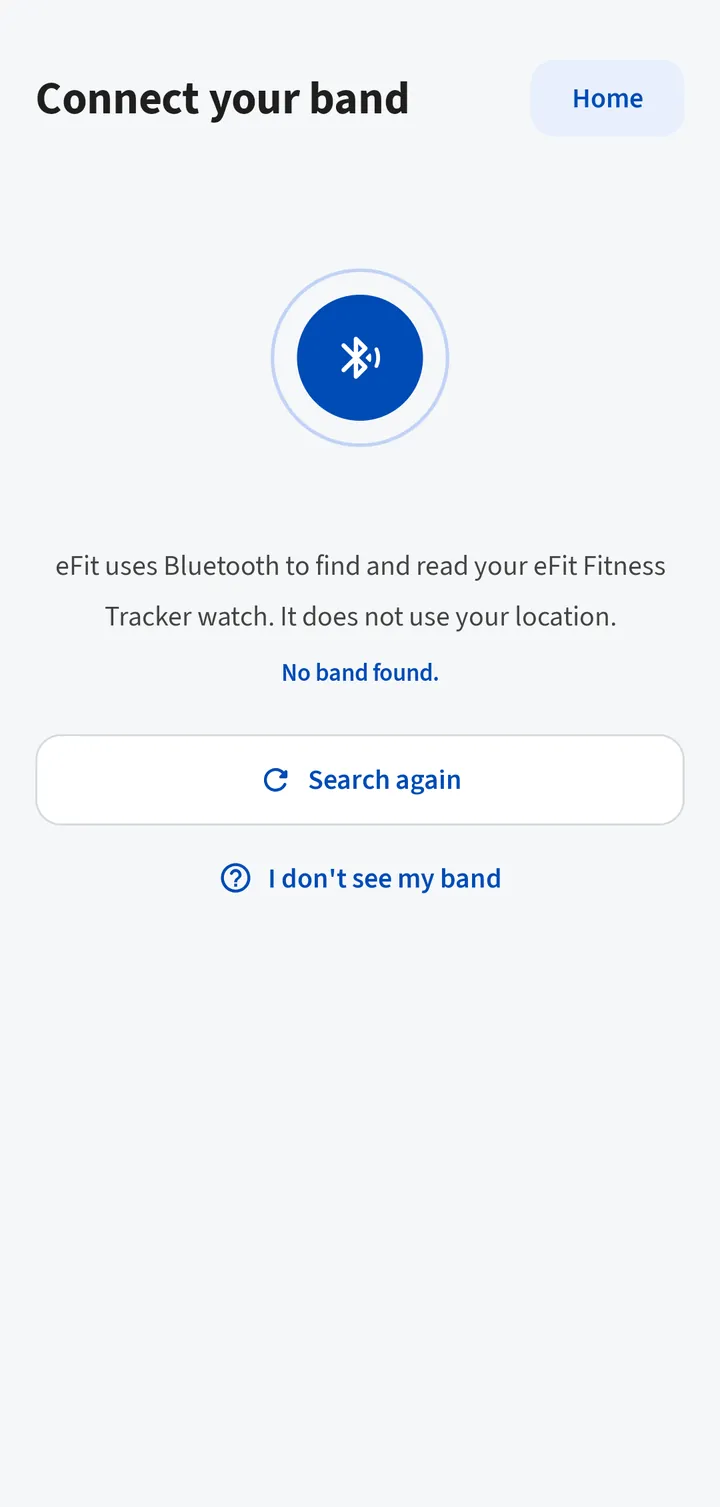
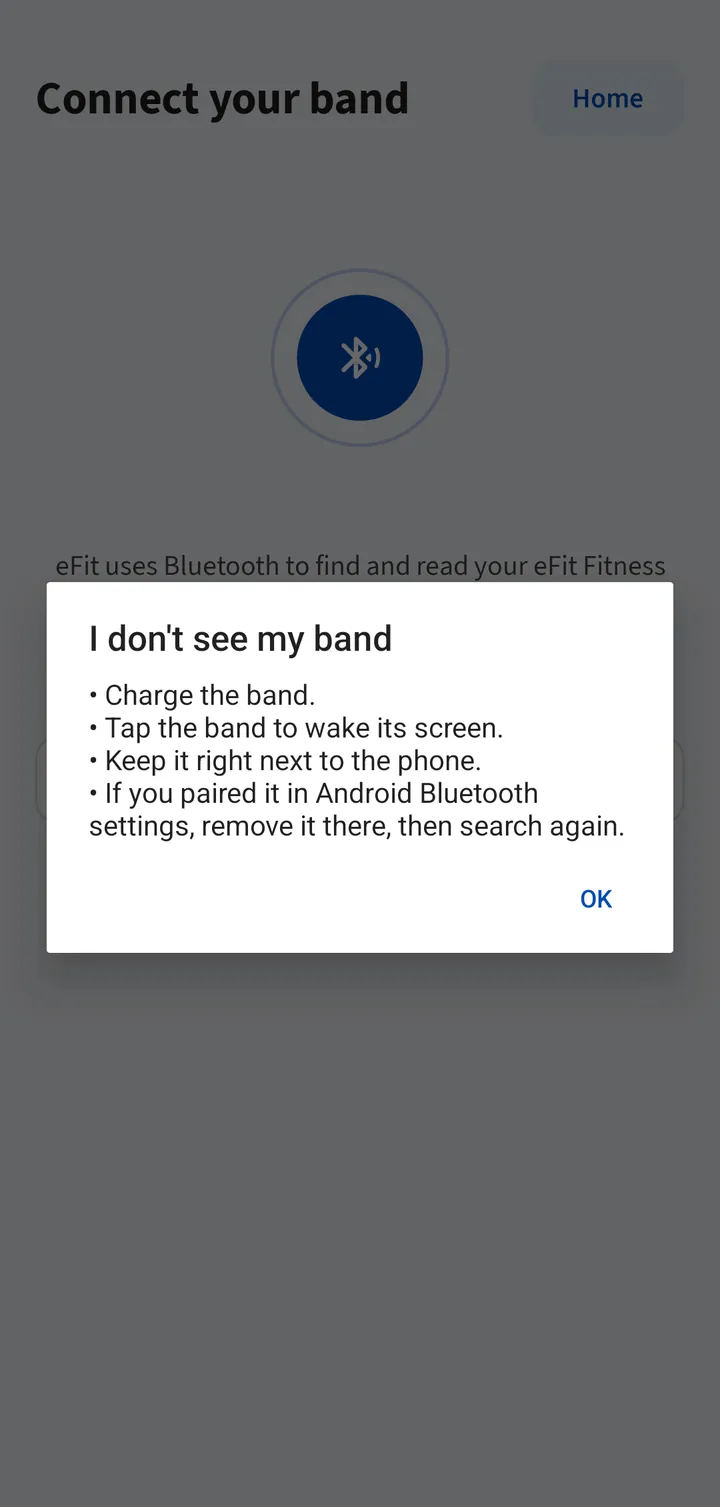
- Charge the watch, then tap its touch key so the screen is on.
- Hold the watch right next to the phone and tap Search again.
- If you paired the watch in Android's Bluetooth settings, remove it there, then search again.
- If the app says Bluetooth permission is off, tap Open settings, then Permissions, and allow Nearby devices.
- If another phone or the KeepHealth app is connected to the watch, close it or turn off that phone's Bluetooth.
Chapter 6
Connect your eFit account
A one-time pairing code links the app to your eFit account, so your activity counts for your class.
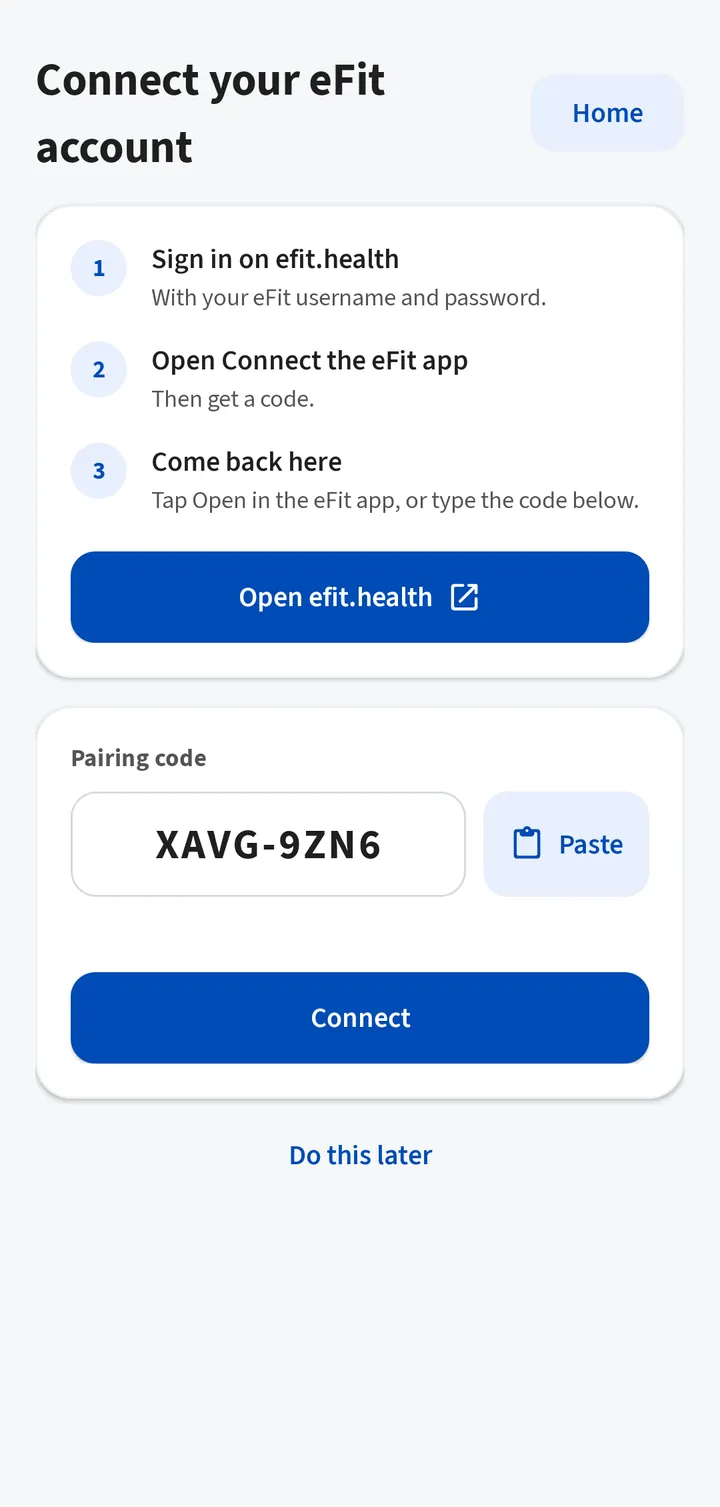
Get a pairing code
Open the Connect the eFit app page
In the app, tap Open efit.health and sign in with your eFit username and password. On a computer, sign in at efit.health, open Fitness Tracker, then Connect the eFit app.
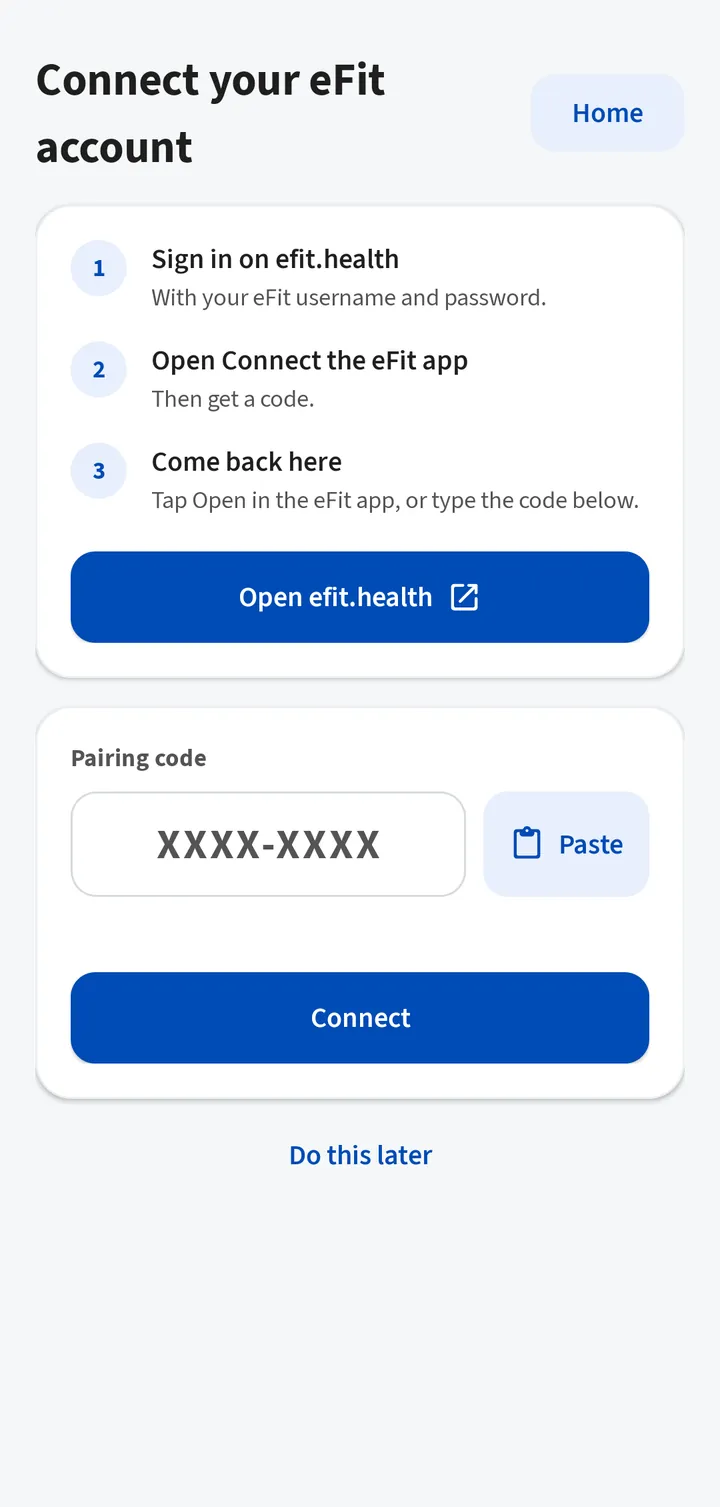
Tap Get a pairing code
The page shows an 8-character code and a QR code. The code works once and expires in 10 minutes. You can get a new one any time.
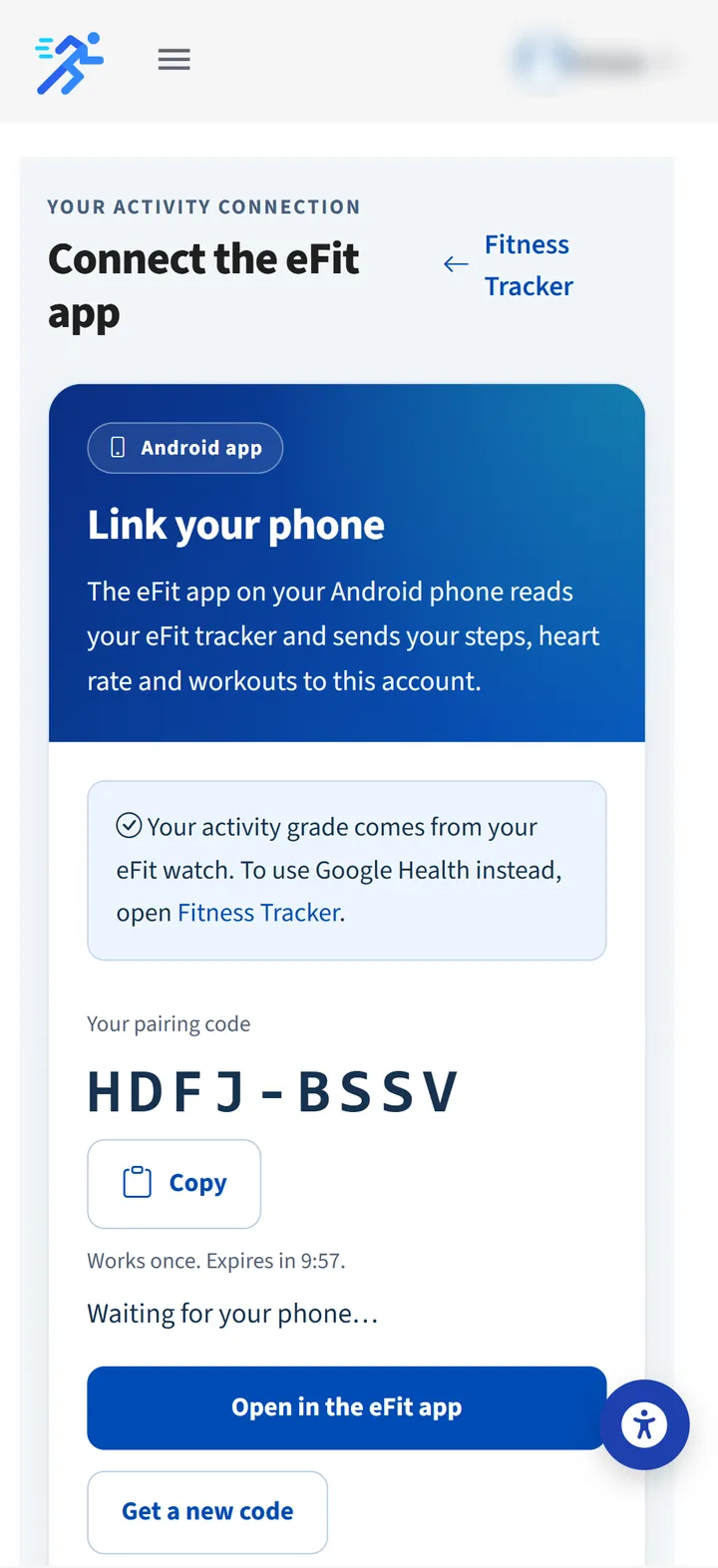
Send the code to the app
On the phone, tap Open in the eFit app. On a computer, scan the QR code with the phone's camera, or type the code into the app's Pairing code box and tap Connect.
Confirm it is you
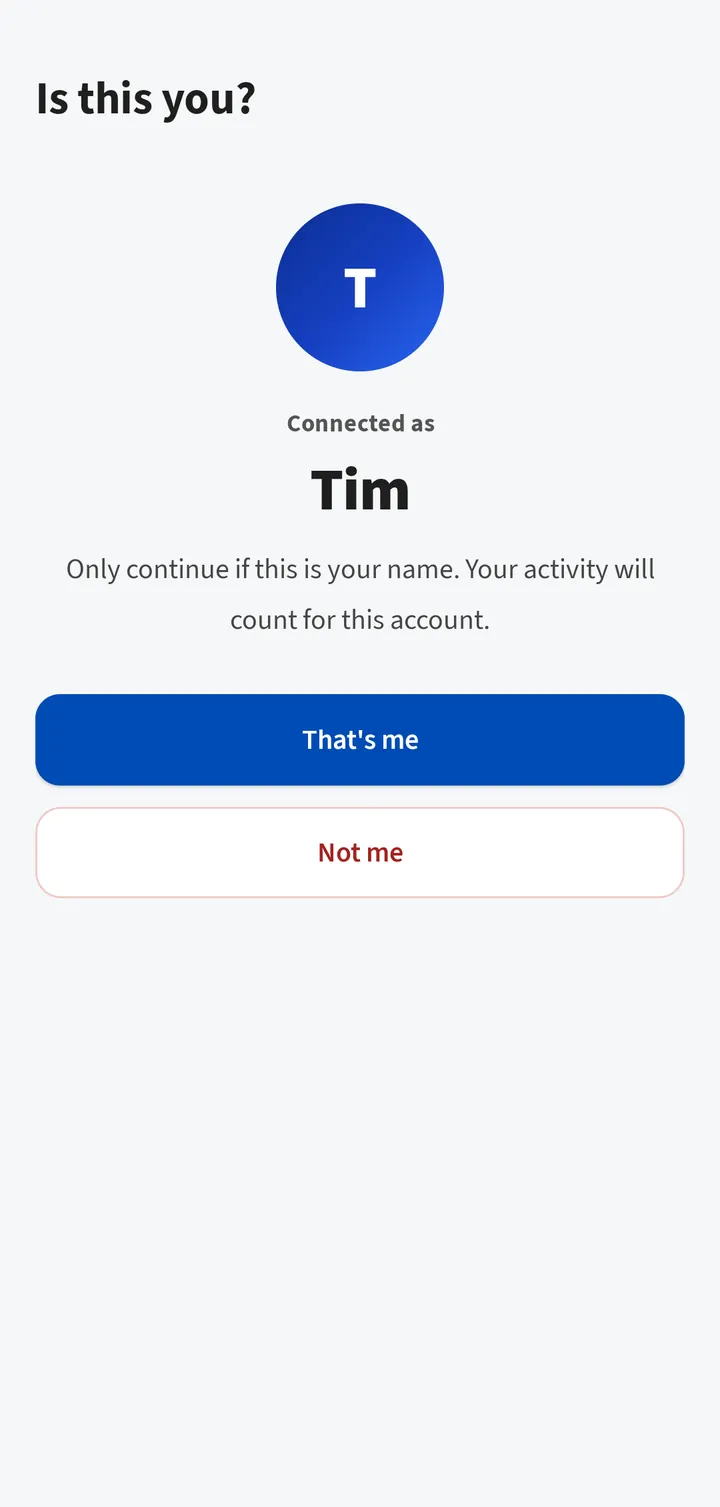
Check the name
The app shows Is this you? with your first name. Tap That's me. If it shows someone else, tap Not me, sign out of efit.health, sign in with your own account and get a new code.
Send activity you already recorded
If the watch recorded days before your account was connected, the app asks Send saved activity? Tap Yes to send them to your account.
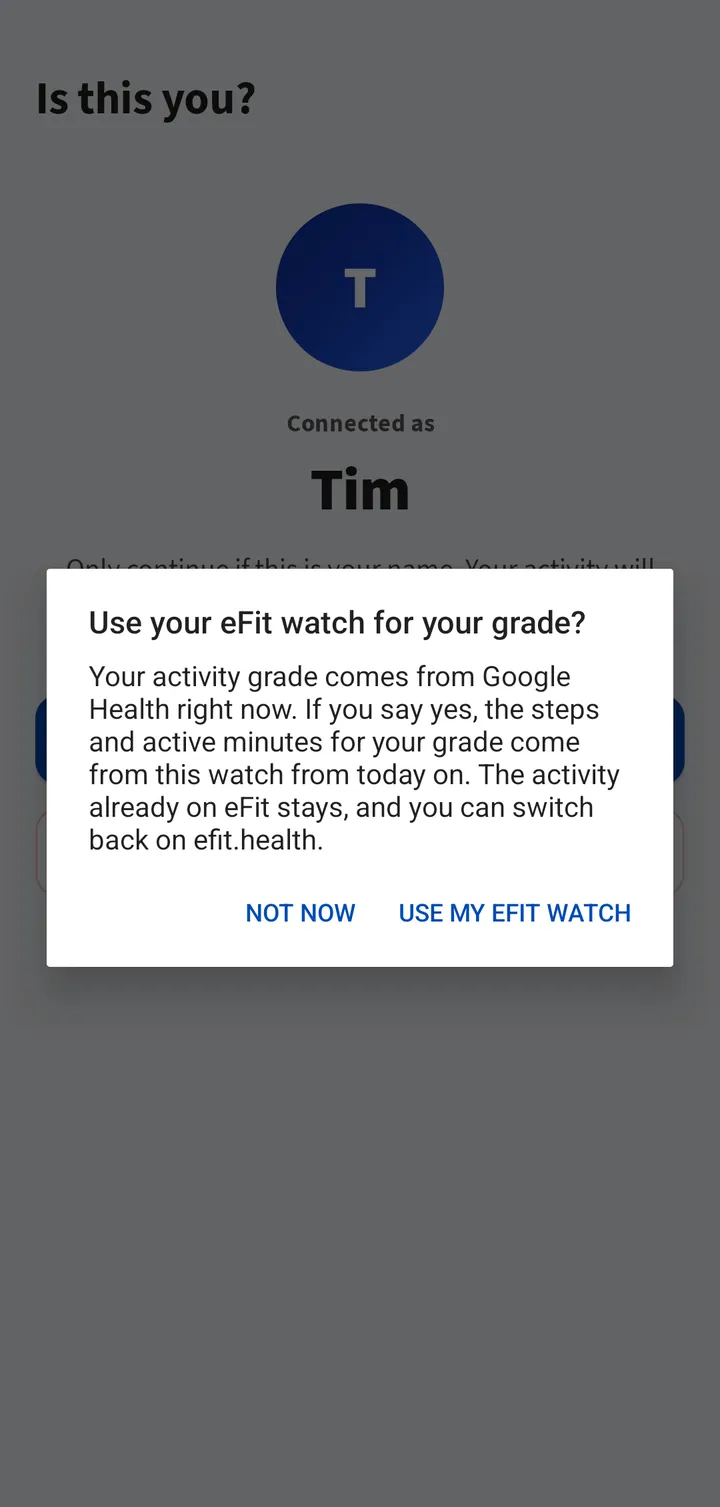
Choose where your grade comes from
The app asks Use your eFit watch for your grade? Tap Use my eFit watch so your steps and active minutes for your grade come from this watch from today on. Activity already on eFit stays. See Your grade.
Chapter 7
The Home screen
Home shows today at a glance and tells you whether eFit has your latest activity.
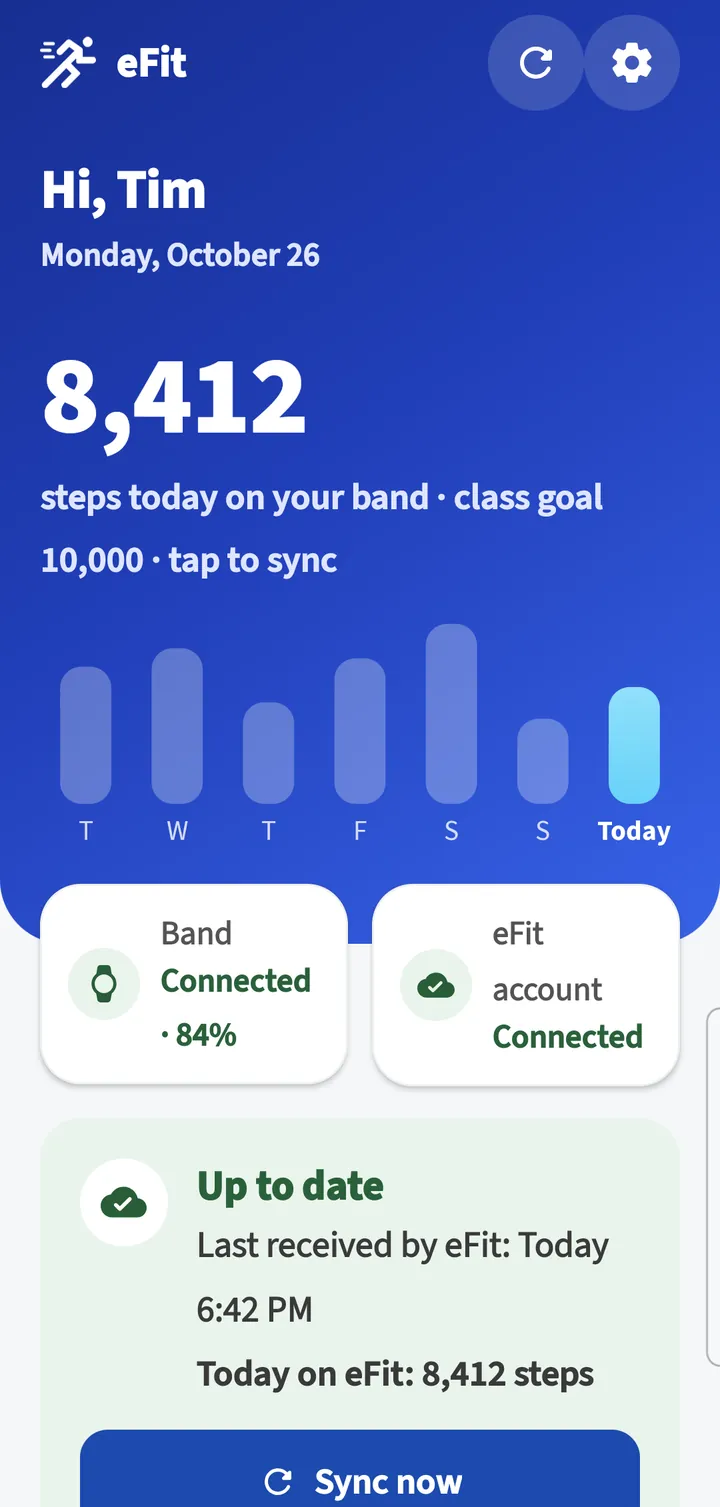
| On Home | What it means |
|---|---|
| Steps today on your band | Today's step count. Your class goal shows next to it. Tap the number to sync. |
| The 7 bars | Your steps for the last 7 days. Today is the bright bar. |
| Circular arrows (top right) | Sync now: read the watch and send to eFit. |
| Gear (top right) | Settings. |
| Band tile | Connected and the battery level, or Not connected when the watch is out of range. |
| eFit account tile | Connected, or Reconnect needed when you need a new pairing code. |
The status card
The card under the tiles always names your one next step.
| Card | What to do |
|---|---|
| Up to date: Last received by eFit, and Today on eFit | Nothing. eFit has your latest activity. |
| Ready to send | Tap Sync now to send today's activity. |
| 1 day is waiting for internet (or more days) | Connect to Wi-Fi or mobile data. The days send on their own, or tap Send saved data now. |
| Not sent to your class yet | Connect your eFit account. Days are saved on the phone until you do. |
| Reconnect your eFit account | Tap Reconnect and get a new pairing code. Your saved days send right after. |
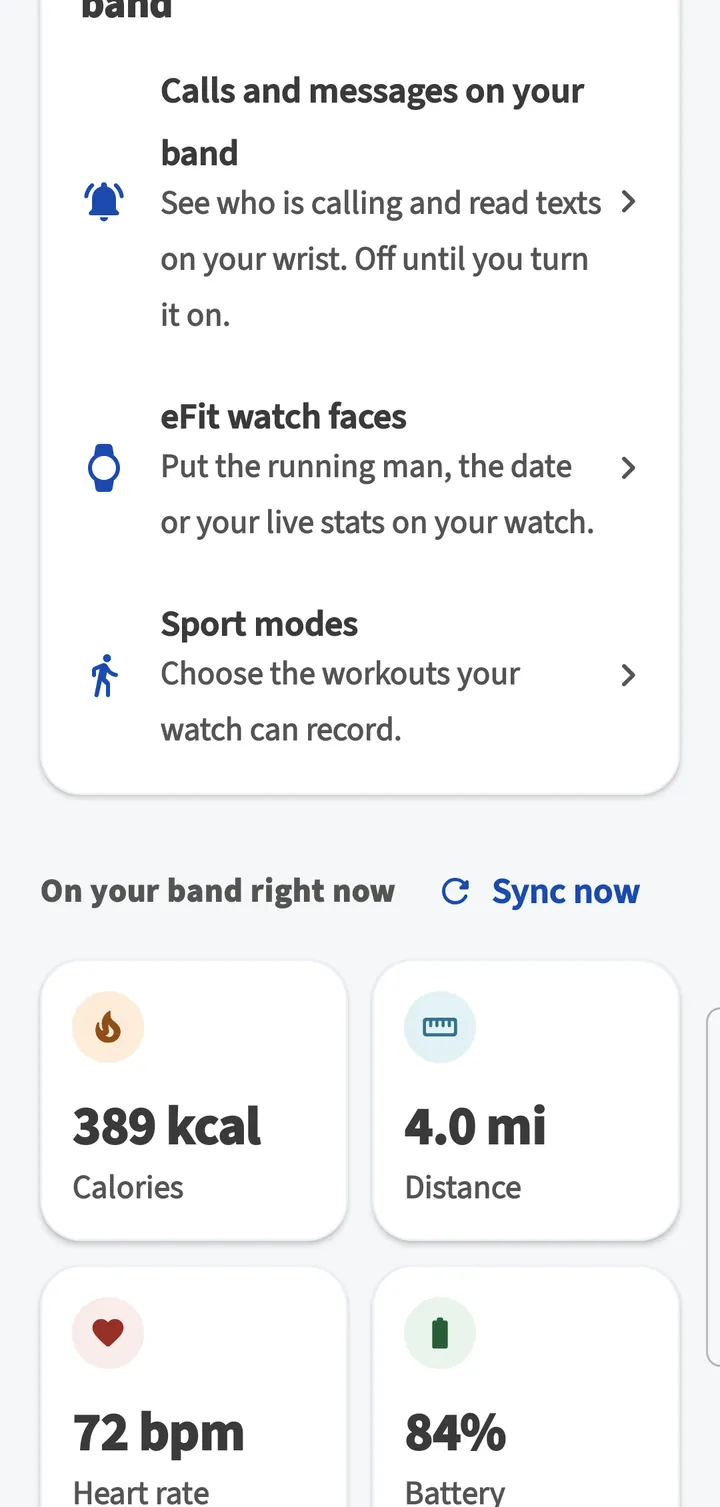
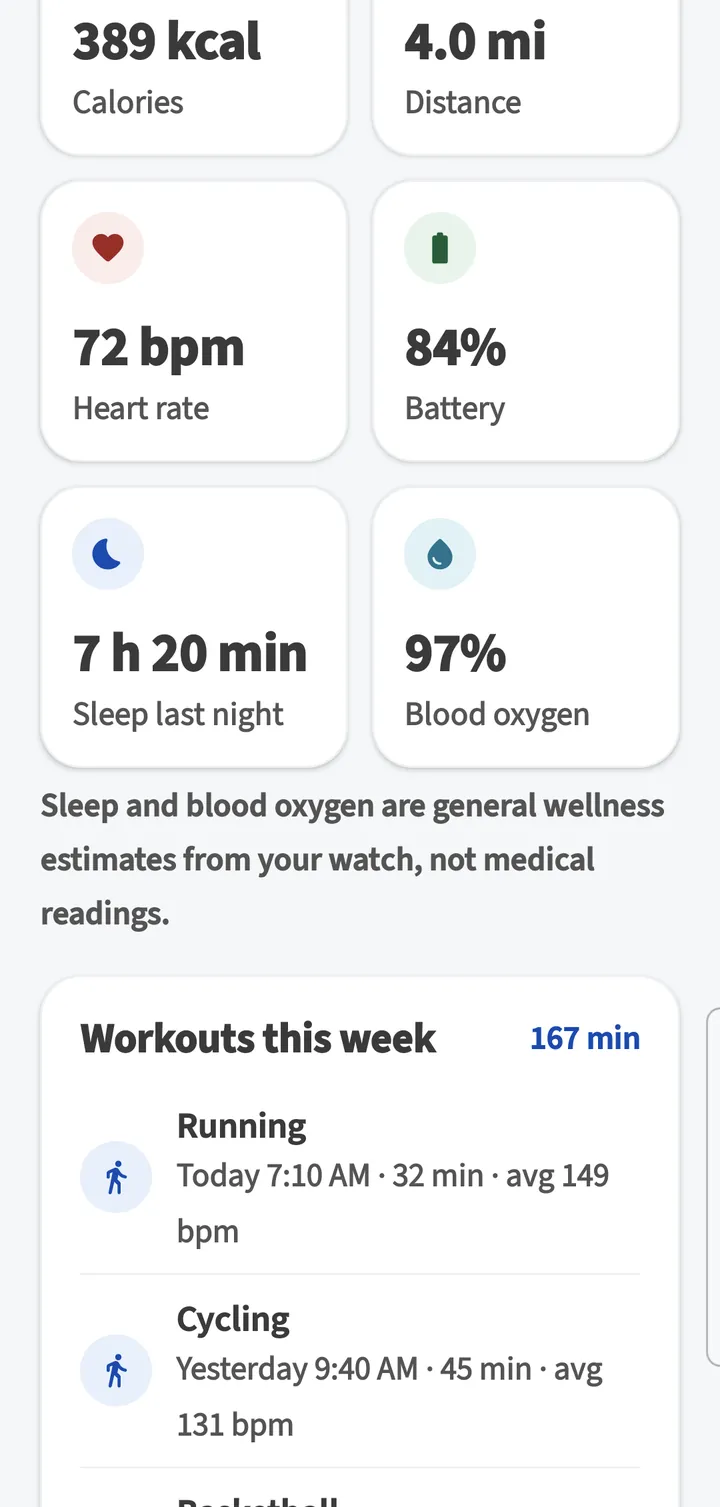
On your band right now shows today's active calories, distance, your latest heart rate and the battery. Tap Heart rate or Sleep last night for details. At the bottom, Last read from band and Last received by eFit show when the app last read the watch and when eFit last received your activity.
Home also has a Food today card for logging meals (see Food log) and, until you dismiss it, a Get more from your band card with shortcuts to alerts, watch faces and sport modes.
Chapter 8
How syncing works
Your activity travels from the watch to your phone over Bluetooth, then from your phone to eFit over the internet. Most of the time it happens on its own.
- While eFit is open, it reads the watch every 5 minutes.
- While eFit is closed, it syncs on the schedule you choose under Settings › Sync with eFit.
- Tap Sync now (or the step number) any time to read the watch and send right away. A full read of 7 days takes under a minute.
- No internet? The phone keeps each day and sends it as soon as it can.
- If your activity has not reached eFit for 2 days, the app sends a reminder.
| Sync with eFit | How it works | Battery |
|---|---|---|
| Live | Every 5 minutes, even when the app is closed. Android shows a small notification while this is on. | Most |
| Every 15 minutes | In the background. Android may wait longer when your phone is idle. | Medium |
| Every hour (default) | In the background, using less battery. | Less |
| Battery saver | Only when you open eFit. | Least |
Chapter 9
Heart rate
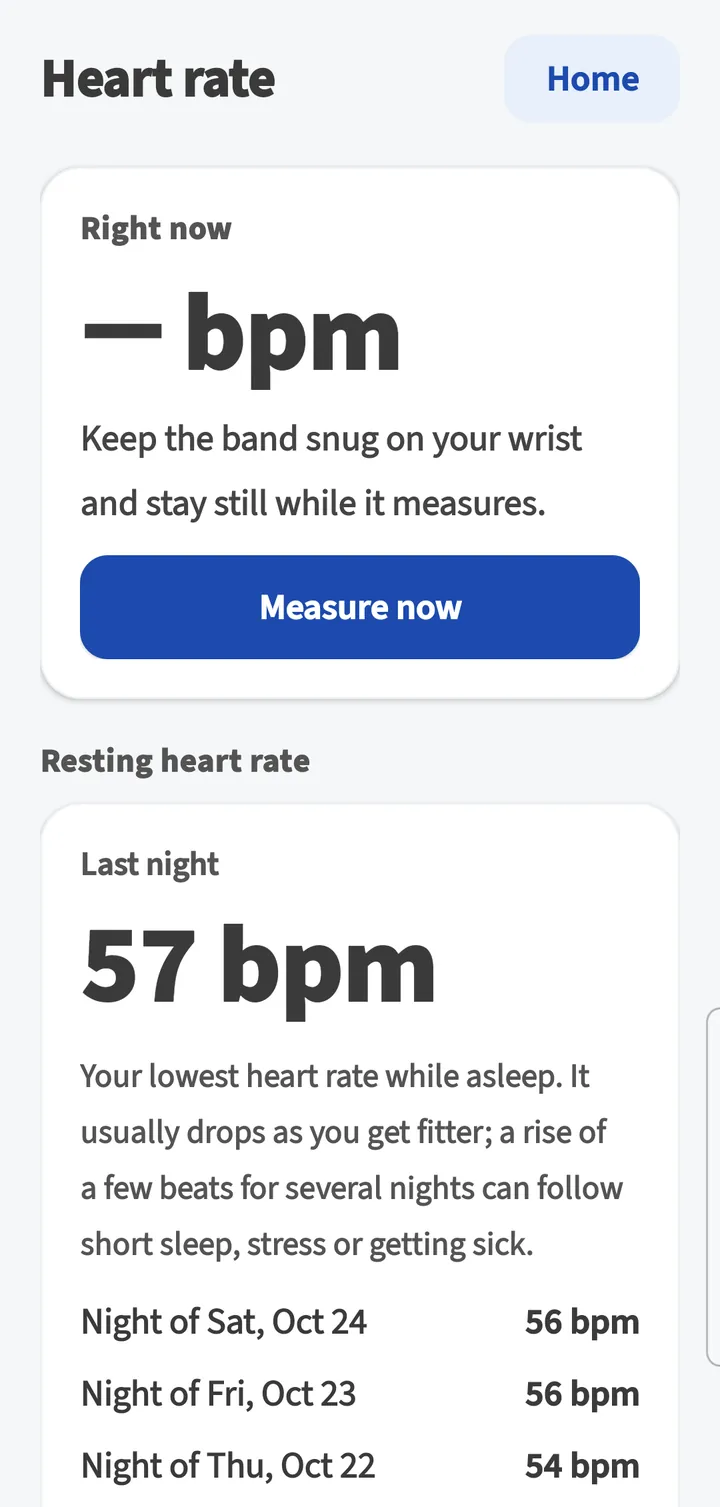
Tap the Heart rate tile on Home to see your heart rate right now, last night's resting heart rate and today's chart.
Measure now
Keep the watch snug on your wrist, sit still and tap Measure now. The watch's green light turns on and a reading shows in about 20 to 30 seconds.
Resting heart rate
Your lowest heart rate while asleep, worked out each morning. It usually drops as you get fitter. A rise of a few beats for several nights can follow short sleep, stress or getting sick.
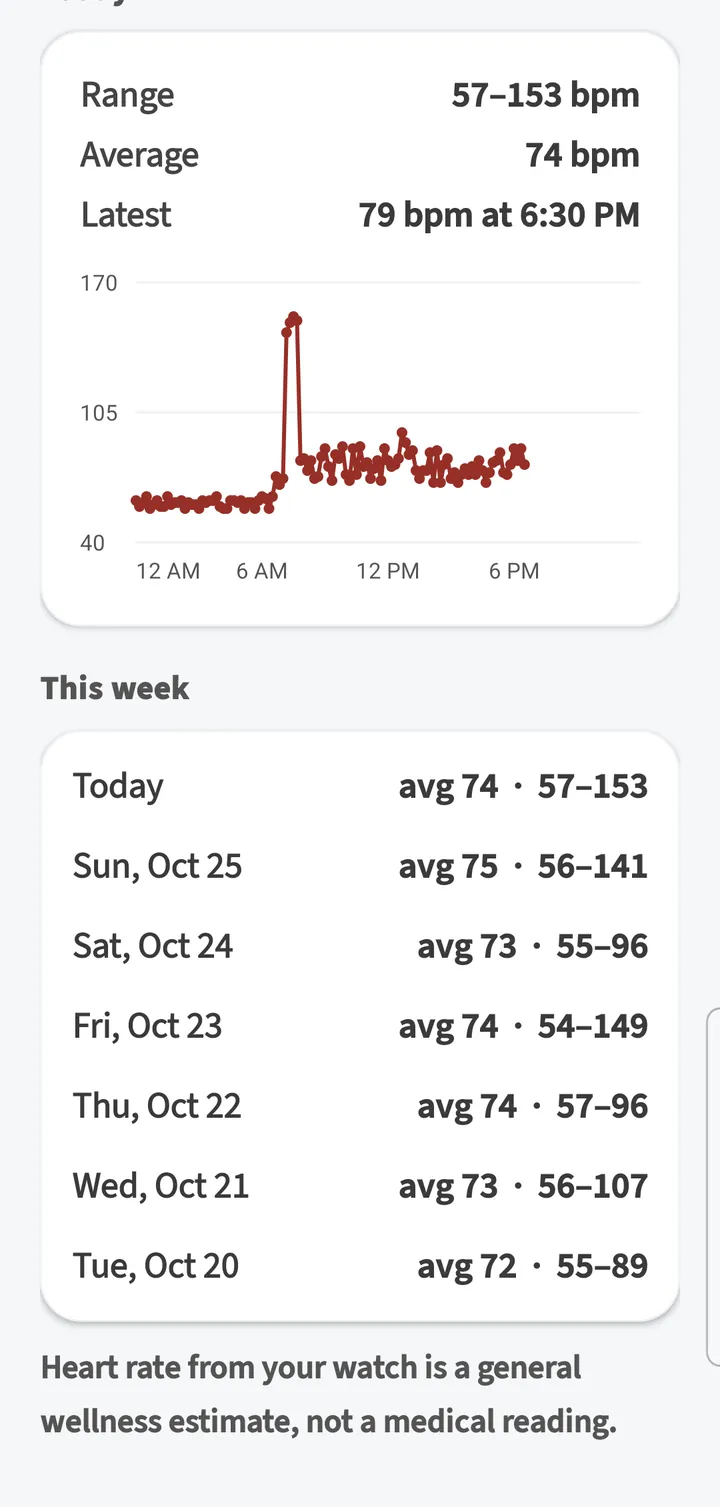
Today and This week
Your range, average and latest reading, a chart of the day, and each day's average and range for the past week.
Chapter 10
Sleep
Wear your watch to bed. In the morning, after the first sync, tap Sleep last night on Home.
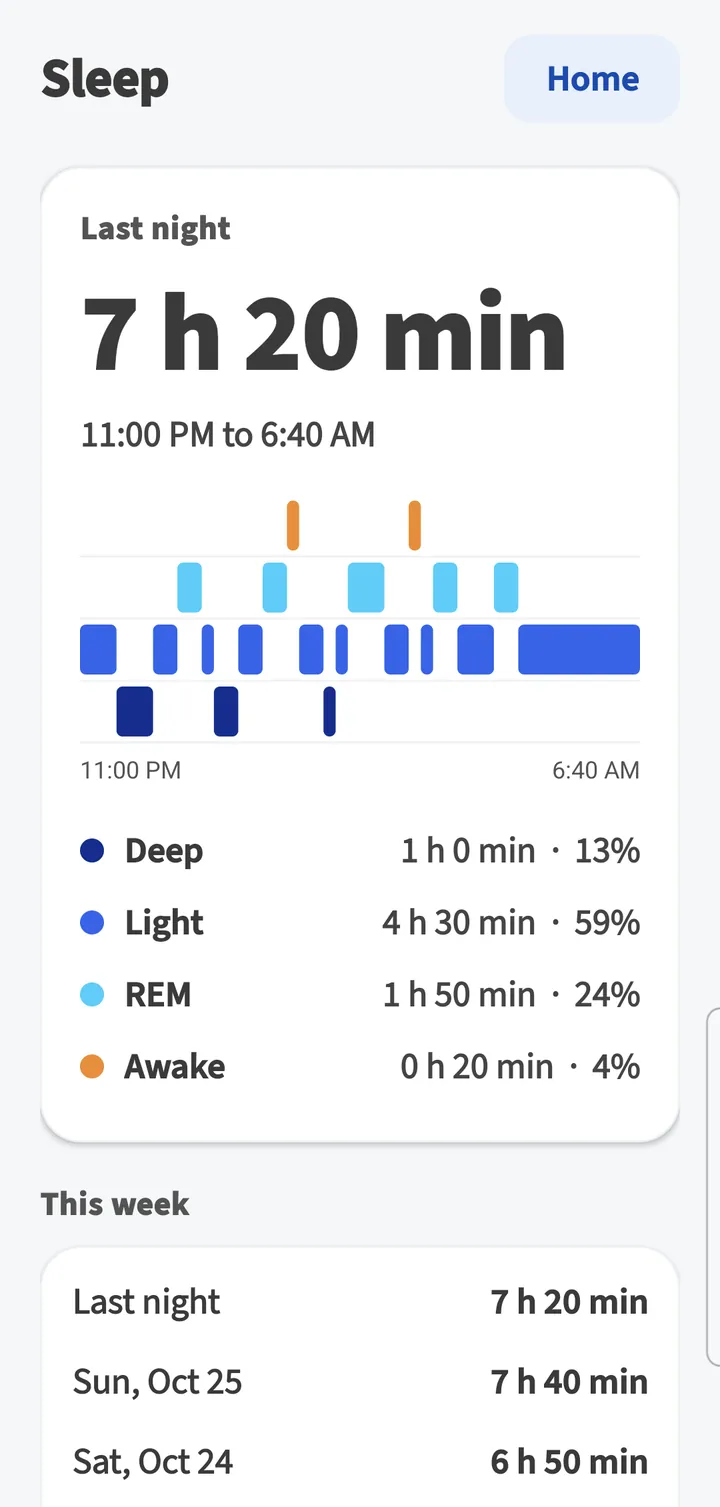
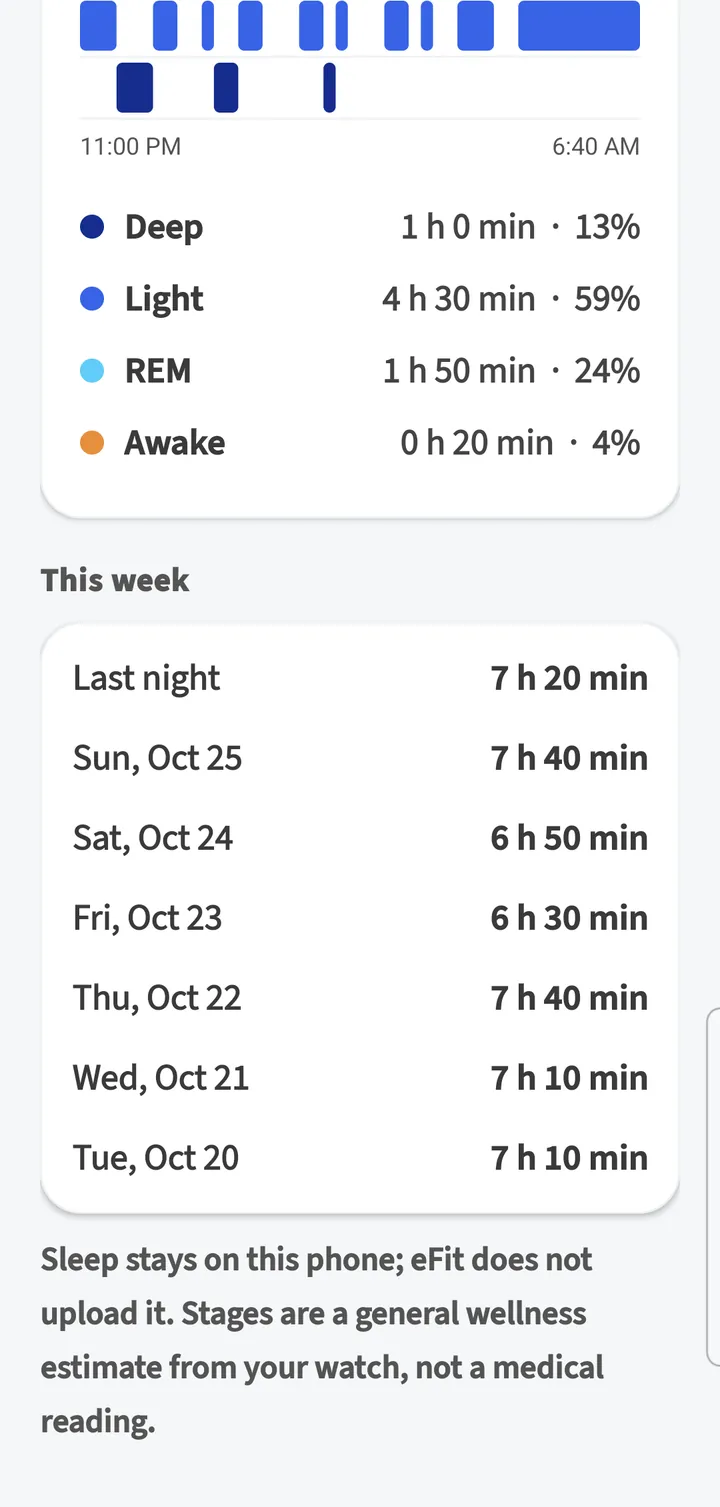
Sleep shows when you fell asleep and woke up, a chart of the night, and how long you spent in deep, light and REM sleep and awake. This week lists each night. Time awake is not counted as sleep.
Chapter 11
Workouts and sport modes
Record a workout on the watch, and it shows on Home after the next sync with its time and average heart rate.
Start a workout on the watch
Tap the touch key until you reach the workout screen, hold the key to open it, tap to pick a sport and hold to start. Hold the key again to pause or finish.
Sync
After the next sync, the workout shows in Workouts this week on Home. When your grade comes from the watch, workouts count toward your active minutes.
Choose the sports on your watch
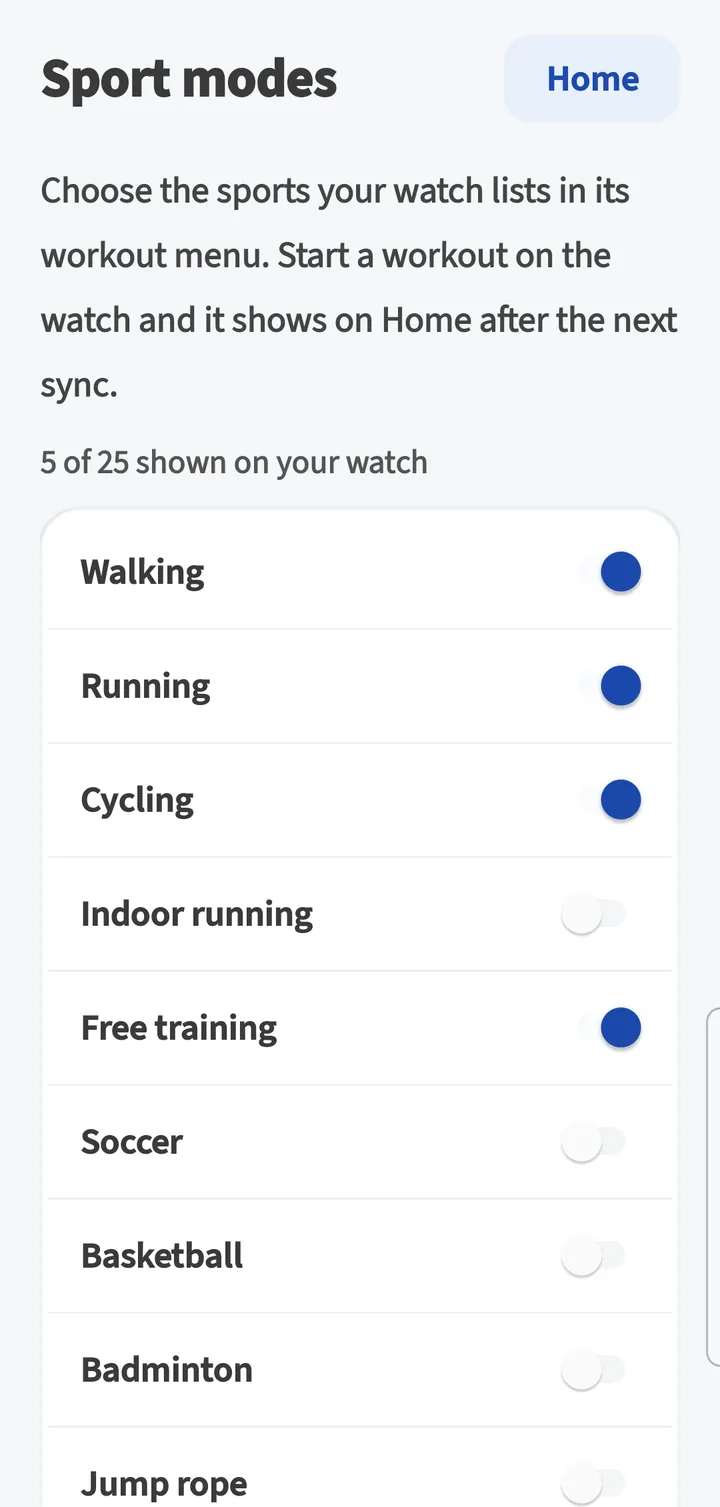
Open Settings › Sport modes
The app reads your watch and shows which sports it lists, for example 5 of 25 shown on your watch.
Turn sports on or off
Keep at least one sport on.
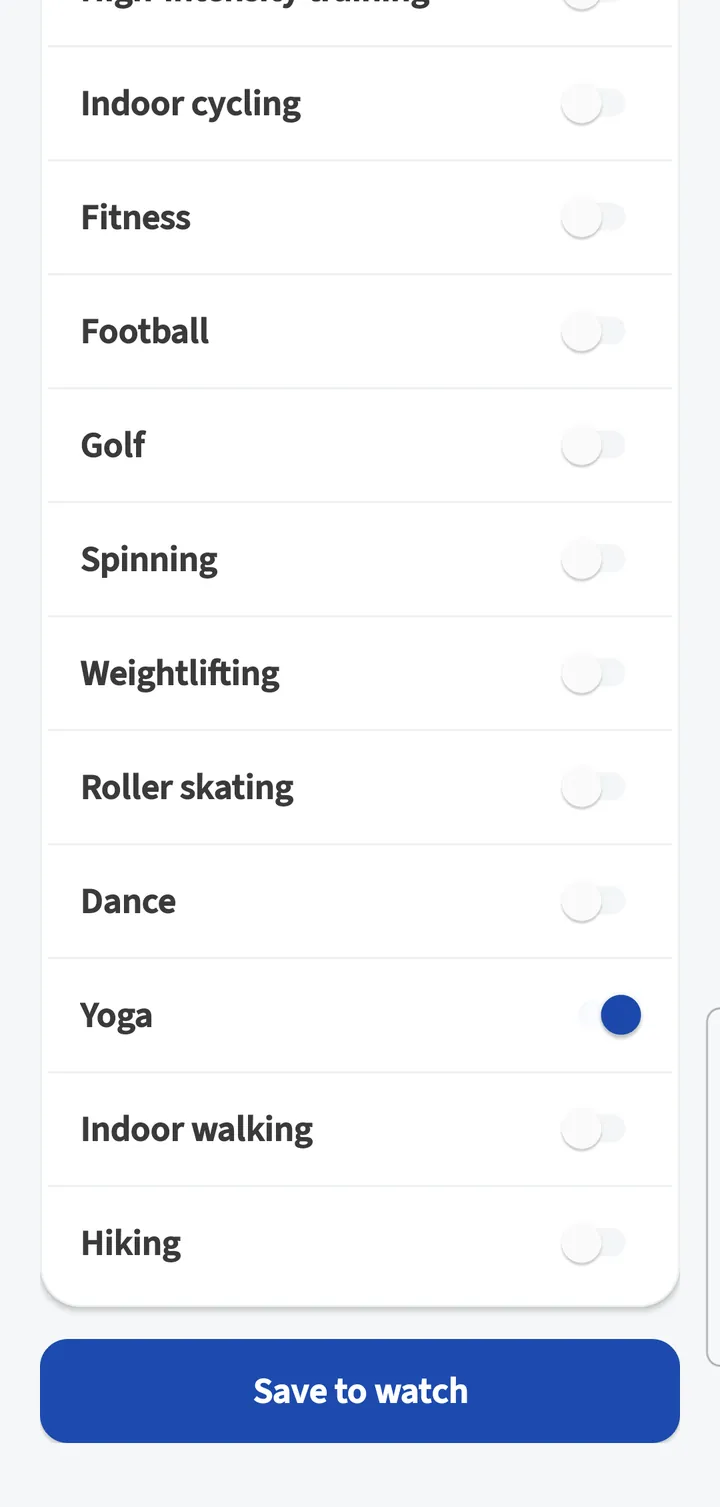
Tap Save to watch
The app confirms, for example Saved. Your watch shows 6 sports.
The 25 sports
- Walking
- Running
- Cycling
- Indoor running
- Free training
- Soccer
- Basketball
- Badminton
- Jump rope
- Push-ups
- Sit-ups
- Mountain climbing
- Tennis
- High-intensity training
- Indoor cycling
- Fitness
- Football
- Golf
- Spinning
- Weightlifting
- Roller skating
- Dance
- Yoga
- Indoor walking
- Hiking
Chapter 12
Watch faces
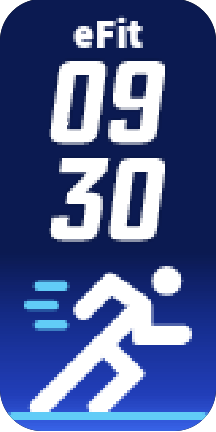
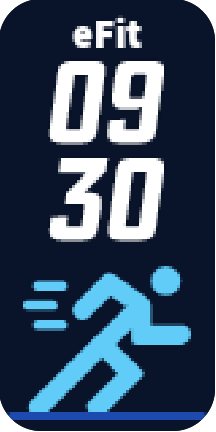
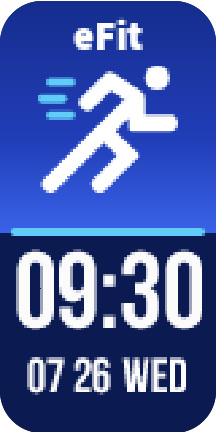
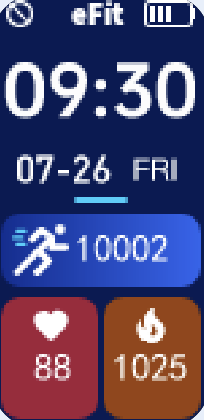
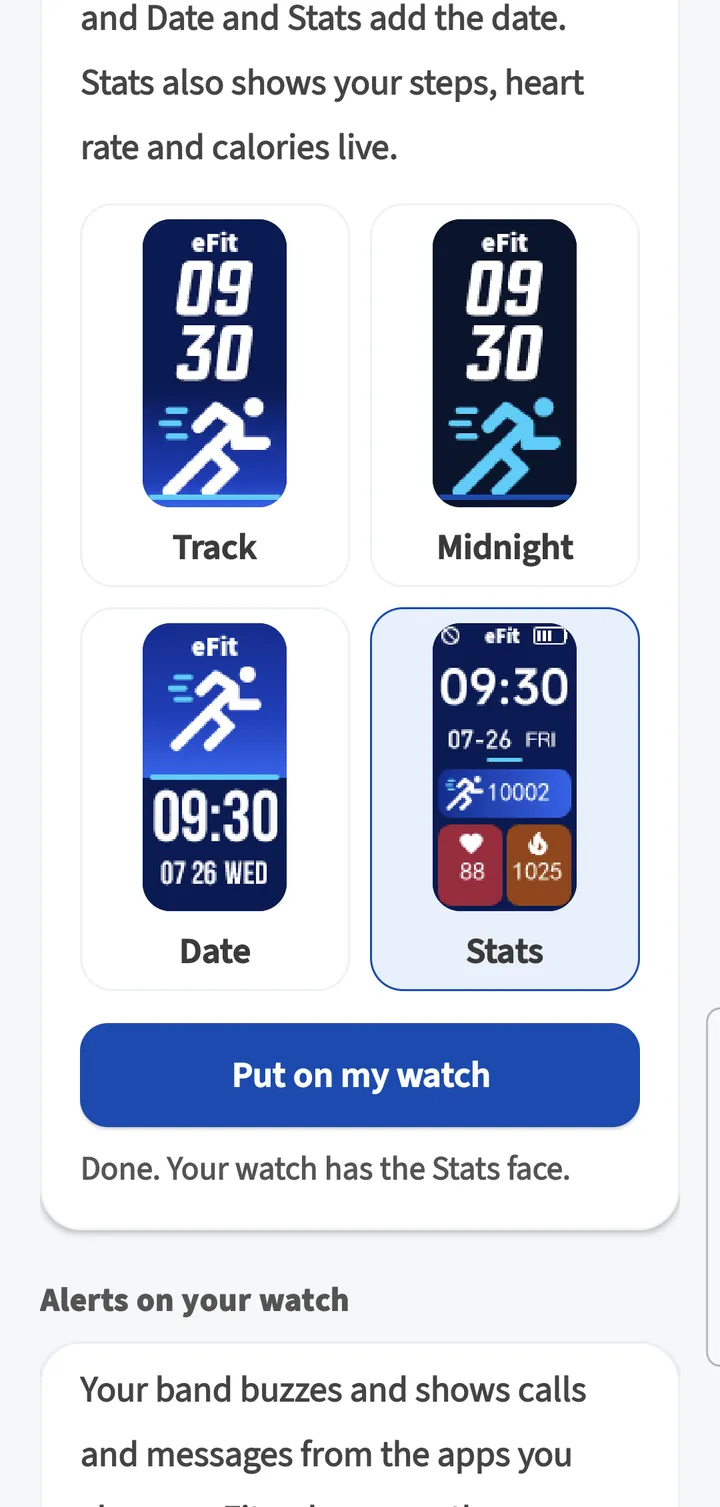
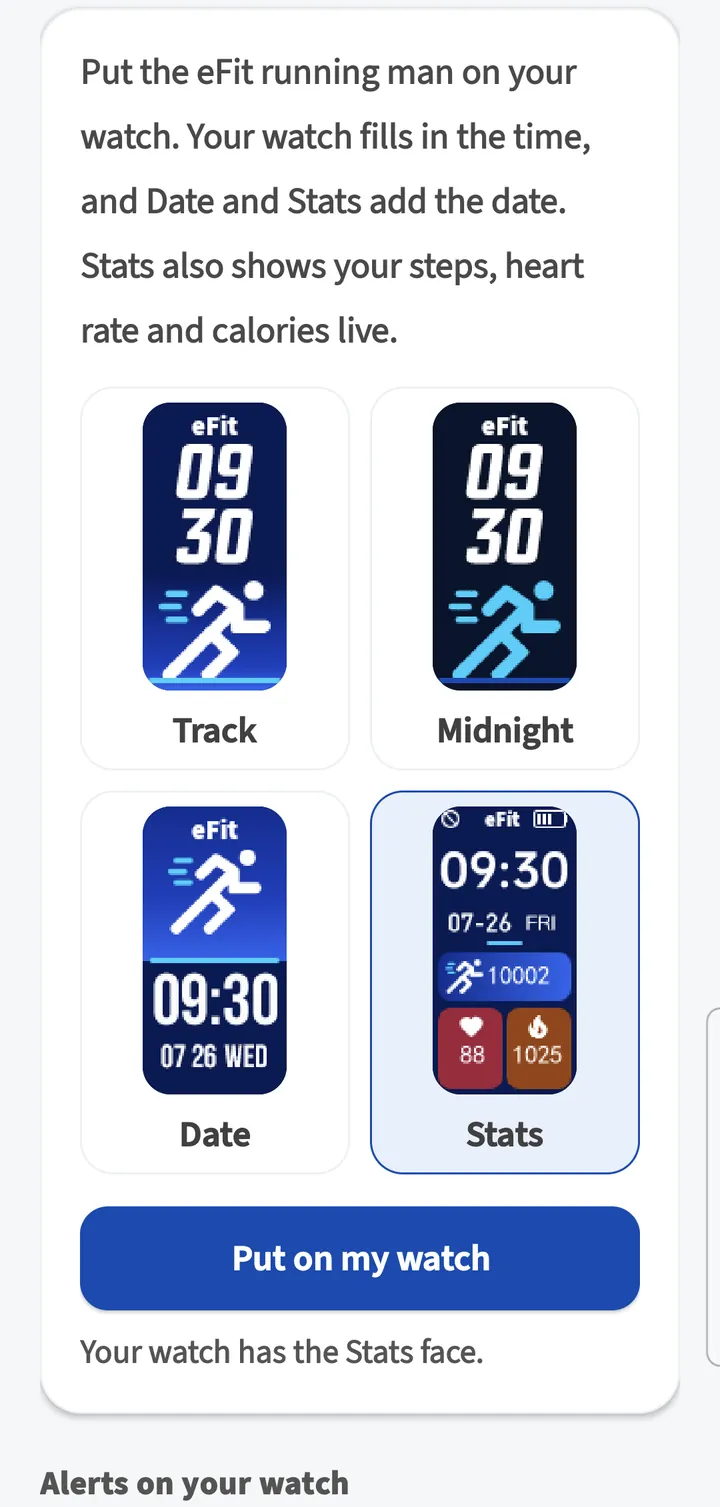
Put the eFit running man on your watch. Your watch fills in the time, Date and Stats add the date, and Stats also shows your steps, heart rate and calories live.
Open Settings › Watch face
Tap the face you want.
Tap Put on my watch
Keep the watch close. The app shows Sending to your watch… with a percent, then Done. Your watch has the Stats face. It usually takes under a minute.
Chapter 13
Calls and messages on your watch
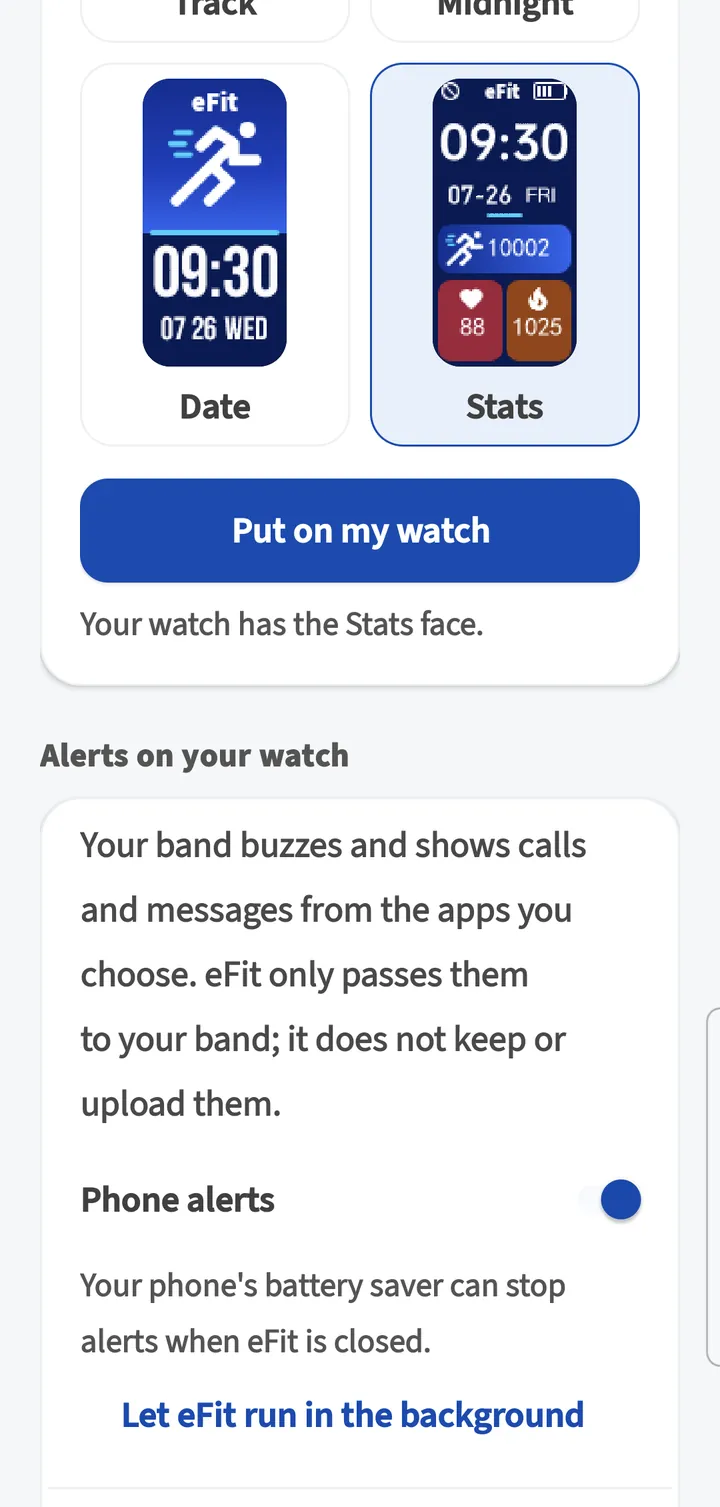
Your watch can buzz and show calls and messages from the apps you choose. Alerts are off until you turn them on.
Turn on Phone alerts
Open Settings › Alerts on your watch and turn on Phone alerts.
Allow notification access
The app explains, then opens Android's settings. Turn on eFit and come back. eFit only sends the apps you choose to your watch.
Choose your apps
Turn on Phone calls, Text messages, Email, WhatsApp and any others you want. Other apps covers any app not listed.
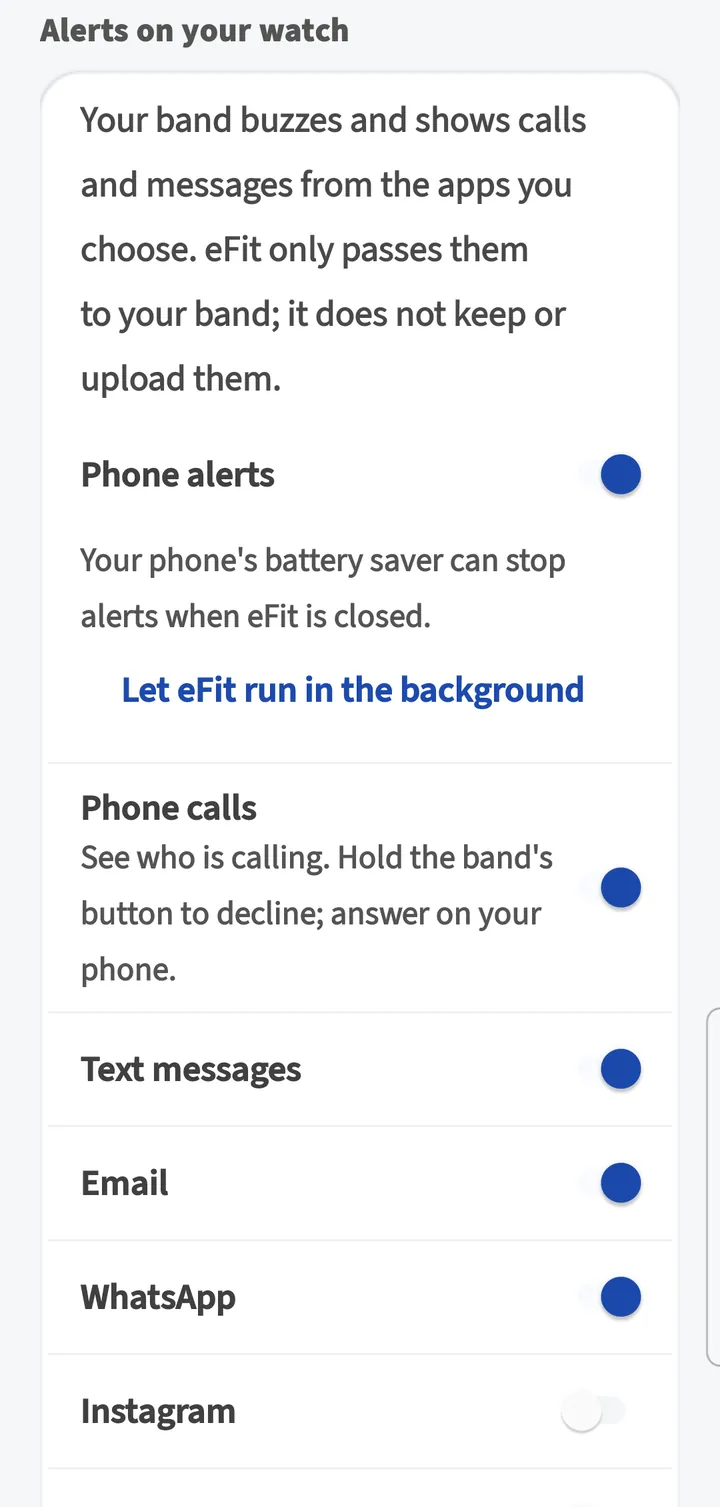
Send a test alert
Tap Send a test alert. Your watch buzzes and shows “Alerts are working on your band.”
Calls
When your phone rings, the watch shows who is calling. Hold the touch key to decline the call (it goes to voicemail). A quick tap closes the call screen. Answer calls on your phone; the watch has no microphone.
Chapter 14
Move reminder, weather and more
A few more settings make the watch work the way you like.
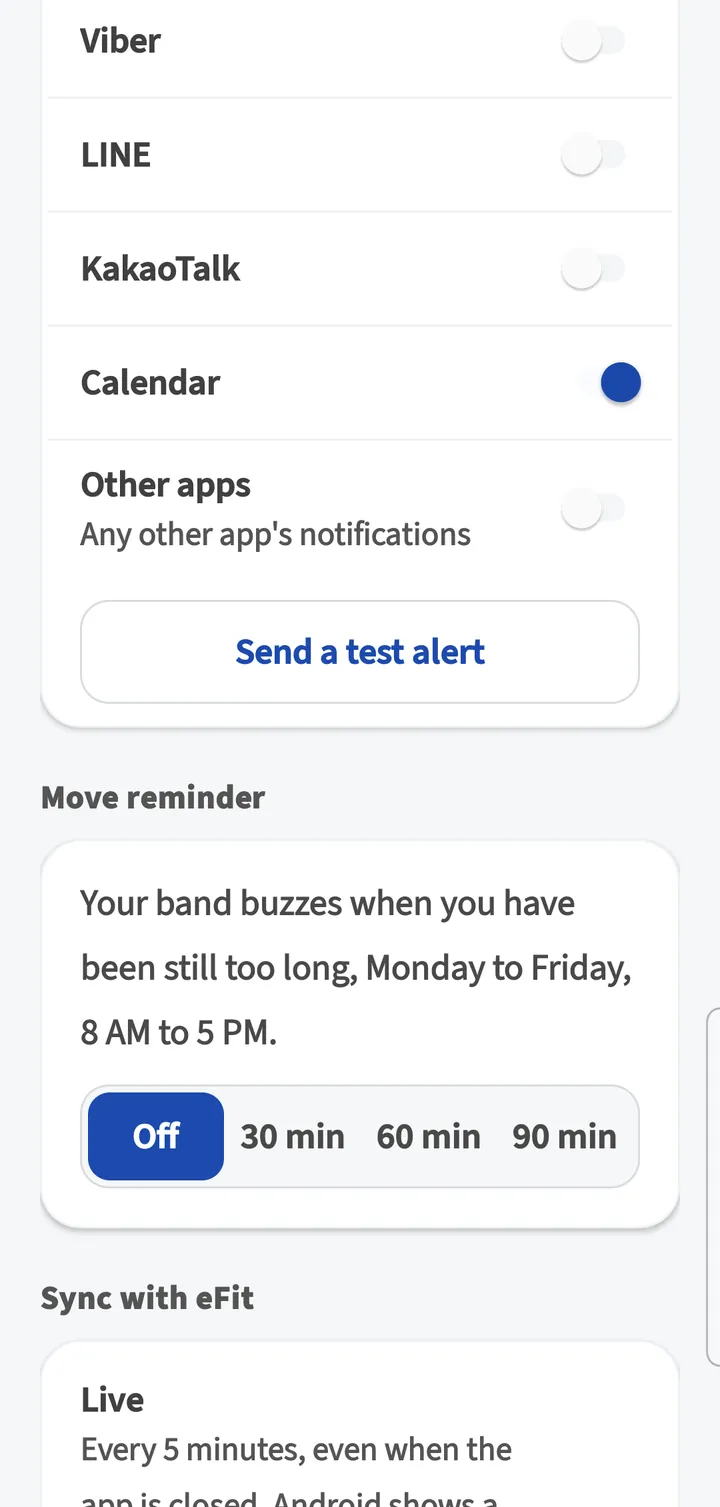
| Setting | What it does |
|---|---|
| Move reminder: Off, 30 min, 60 min, 90 min | Your band buzzes when you have been still too long, Monday to Friday, 8 AM to 5 PM. |
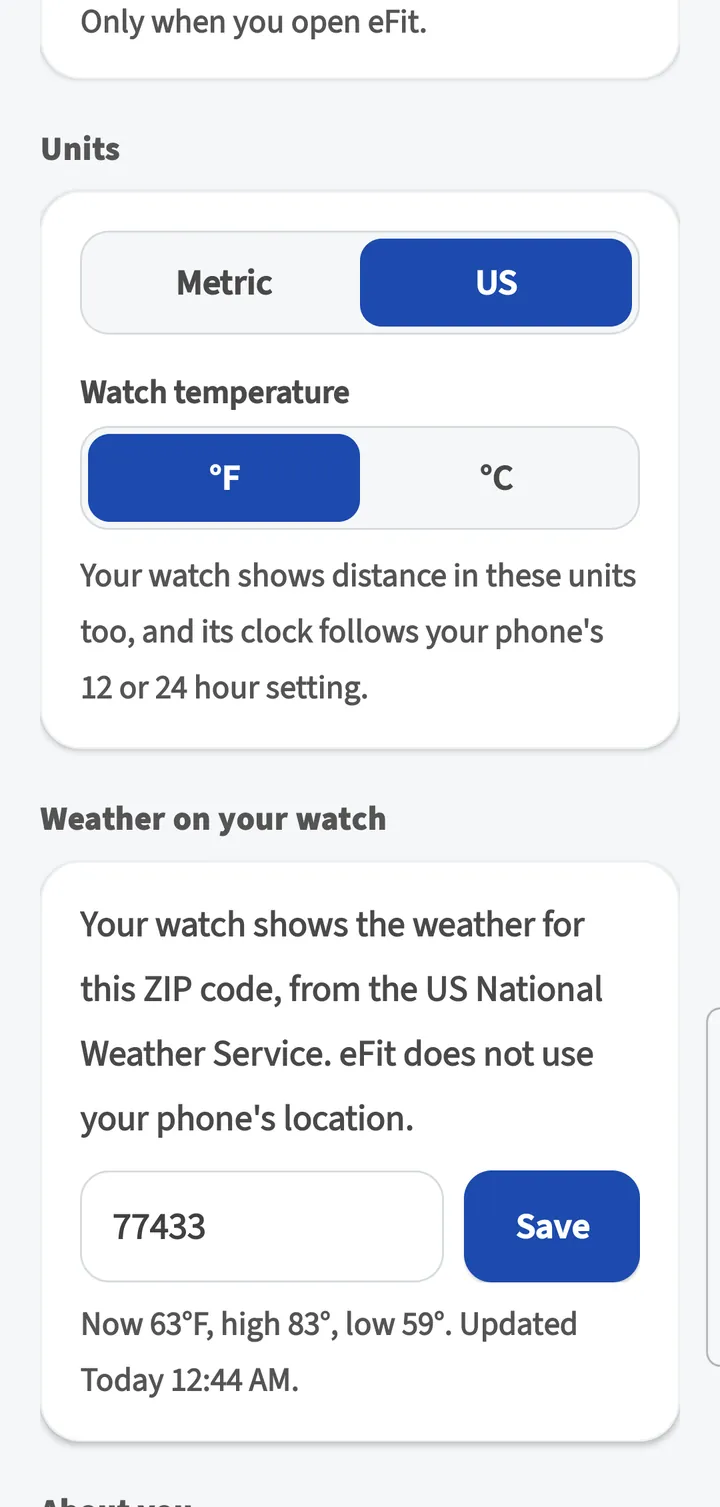
| Weather on your watch | Enter a 5-digit US ZIP code and tap Save. The watch shows the weather from the US National Weather Service. eFit does not use your phone's location. Leave it empty to turn weather off. |
| Units: Metric or US | Units in the app and on the watch. Watch temperature picks °F or °C. The watch clock follows your phone's 12 or 24 hour setting. |
| Vibrate band | Find your band: it buzzes for a few seconds. |
| About you | Height, weight, age and sex for calorie and distance estimates. |
Chapter 15
Food log
Log what you eat in the app. Foods come from USDA FoodData Central, and you can scan barcodes and labels.
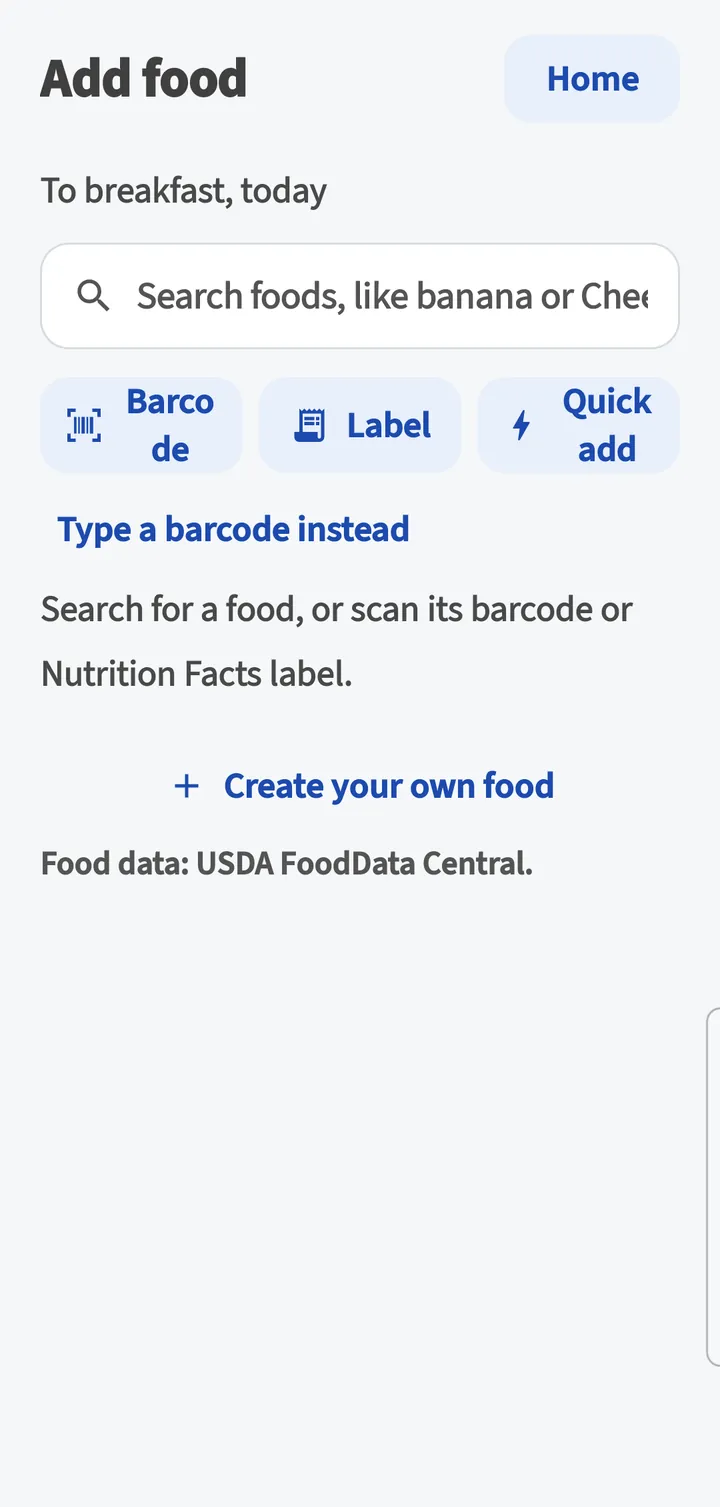
Tap Add food
On Home, find Food today and tap Add food. Choose how to add it: Search foods, Barcode, Label or Quick add.
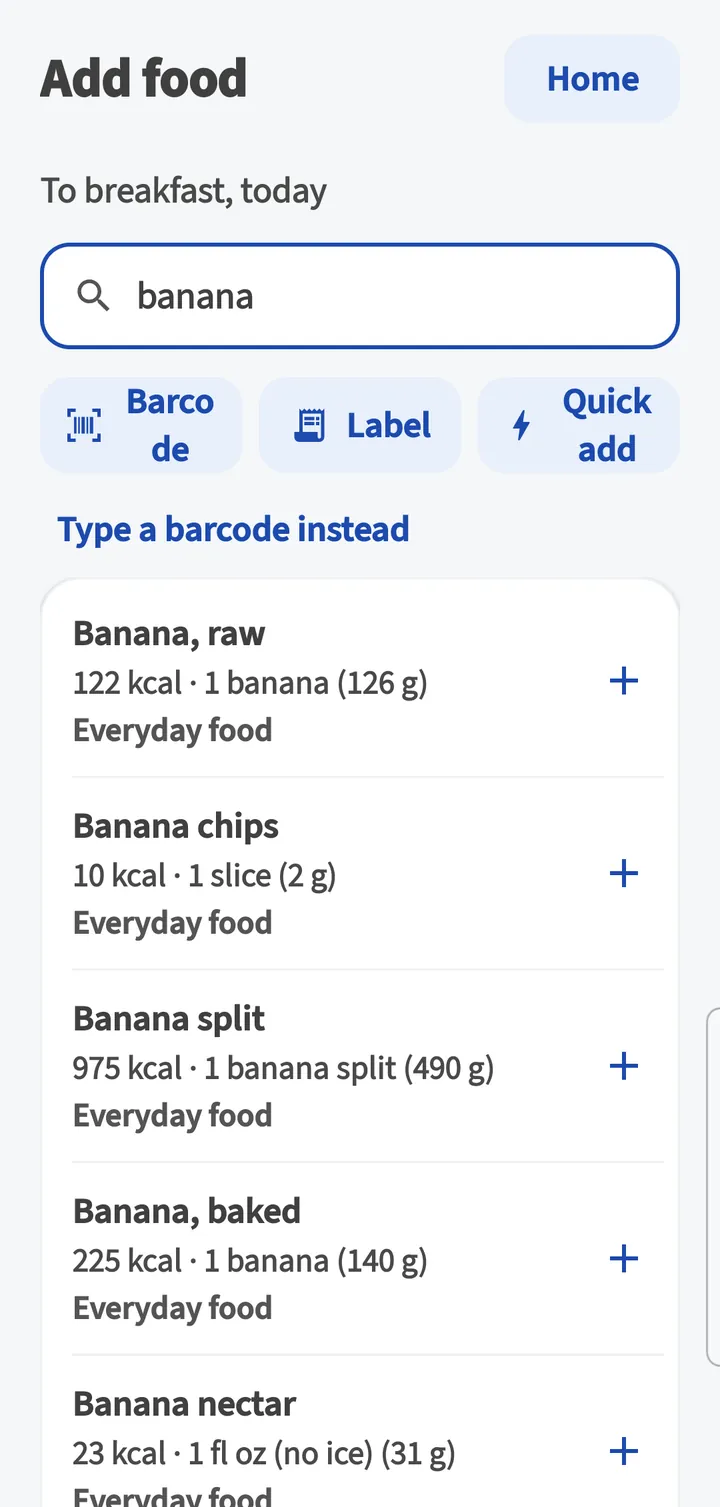
Pick the food
Search results show calories per serving.
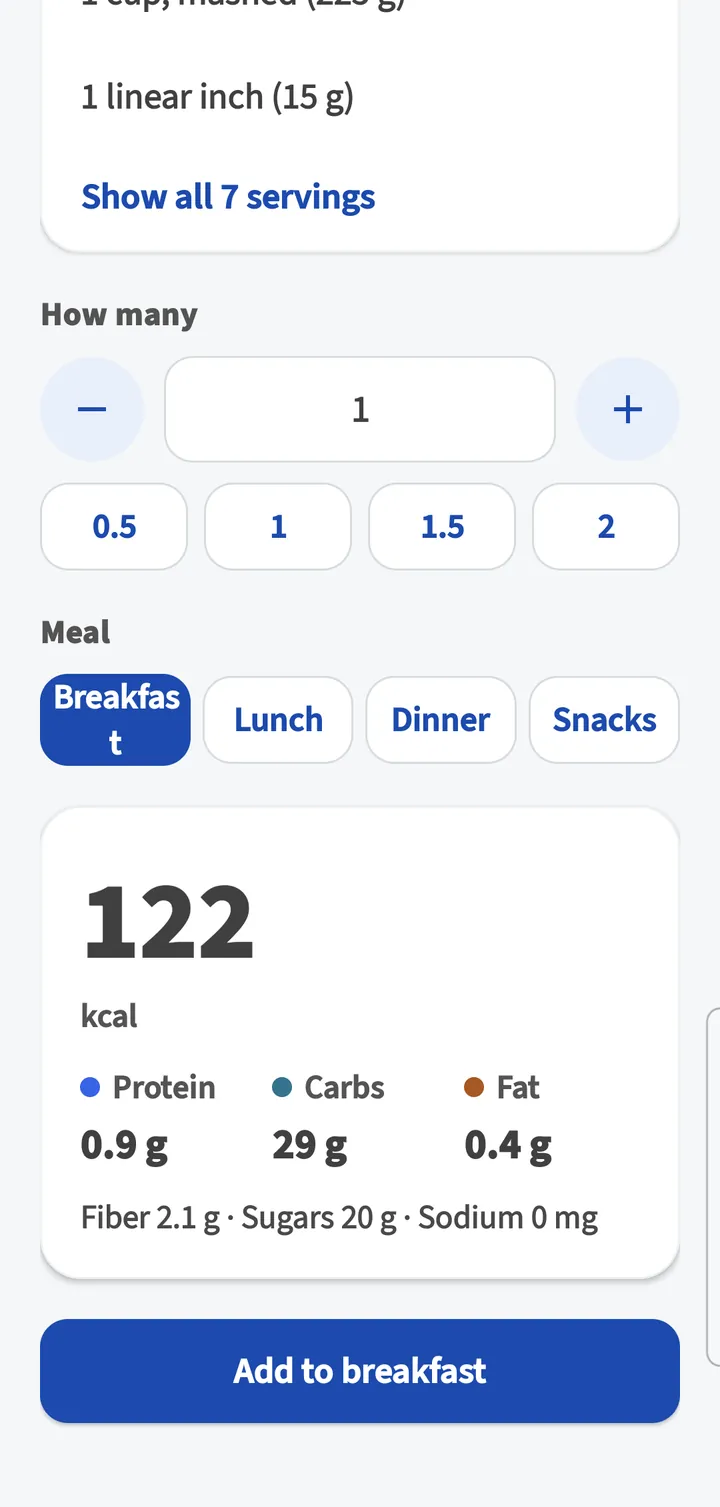
Choose the serving and meal
Pick a serving, how many, and Breakfast, Lunch, Dinner or Snacks, then tap Add to breakfast (or the meal you chose).
See your day
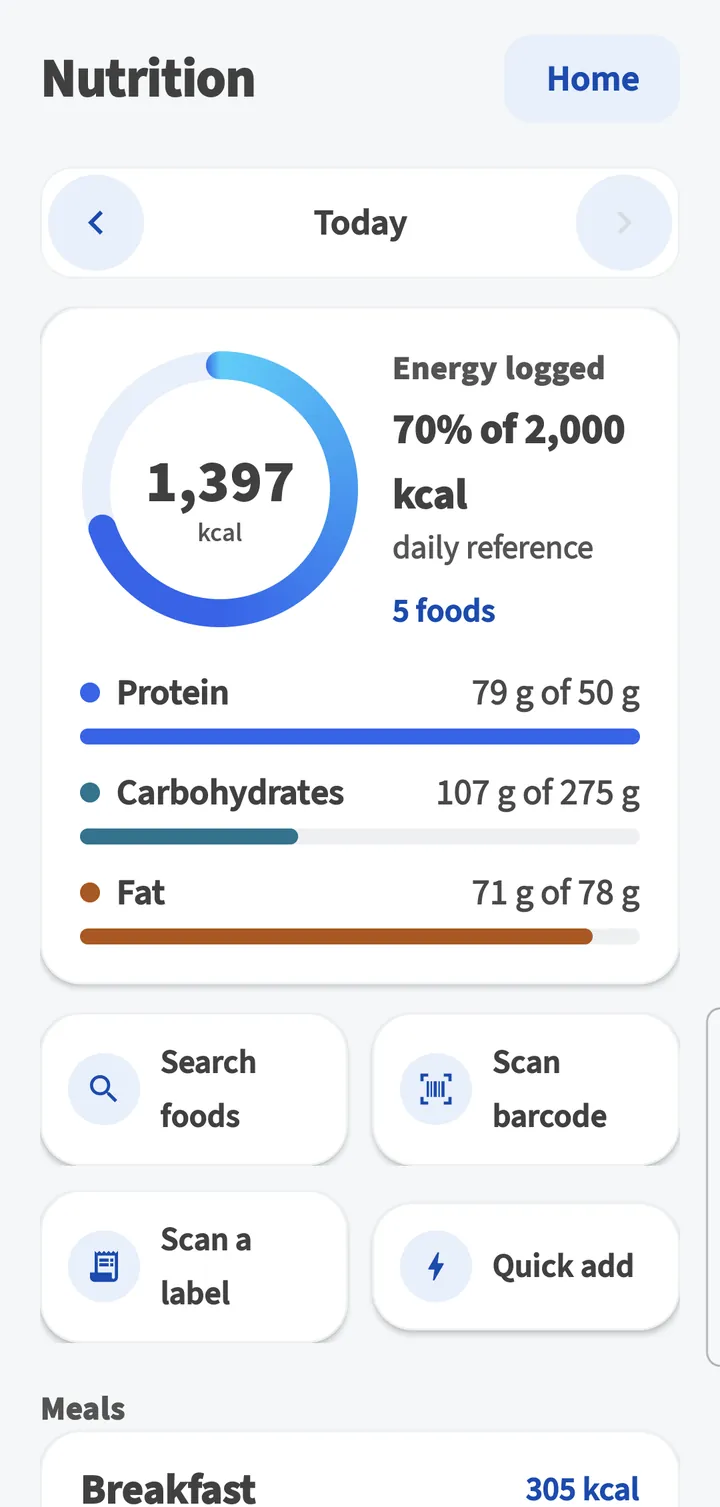
Nutrition shows energy logged, protein, carbohydrates and fat, your meals, nutrients compared with the Daily Values, and how processed your foods were.
- Barcode scans the package barcode. Tap Type a barcode instead to enter the digits.
- Label reads a Nutrition Facts label with the camera.
- Create your own food saves a recipe or a food that is not listed.
- Use the arrows at the top of Nutrition to see other days.
- Foods you log here also show on the Nutrition page on efit.health.
Chapter 16
Your grade
Your class can grade your activity from this watch. You choose when you connect your account, and you can change it later.
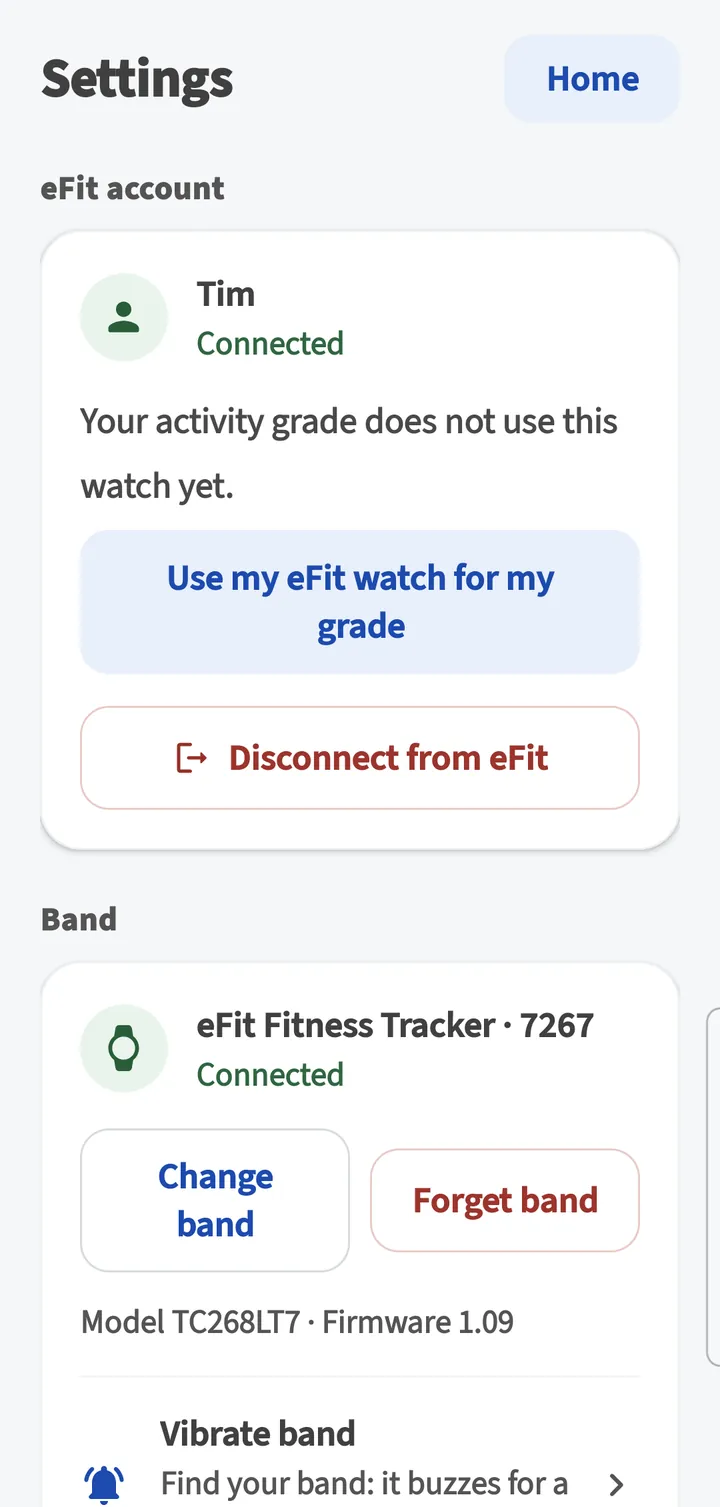
- When you tap Use my eFit watch, your steps and active minutes for your grade come from this watch from that day on.
- Activity already on eFit stays where it is.
- If you tapped Not now, open Settings and tap Use my eFit watch for my grade whenever you are ready.
- To switch back to Google Health, open Fitness Tracker on efit.health.
- Today on eFit on the status card is the step count eFit has for today. If it is lower than the watch, tap Sync now.
Chapter 17
Settings at a glance
Tap the gear on Home. Here is every section, top to bottom.
| Section | What you can do |
|---|---|
| eFit account | See who is connected and where your grade comes from. Use my eFit watch for my grade. Disconnect from eFit. |
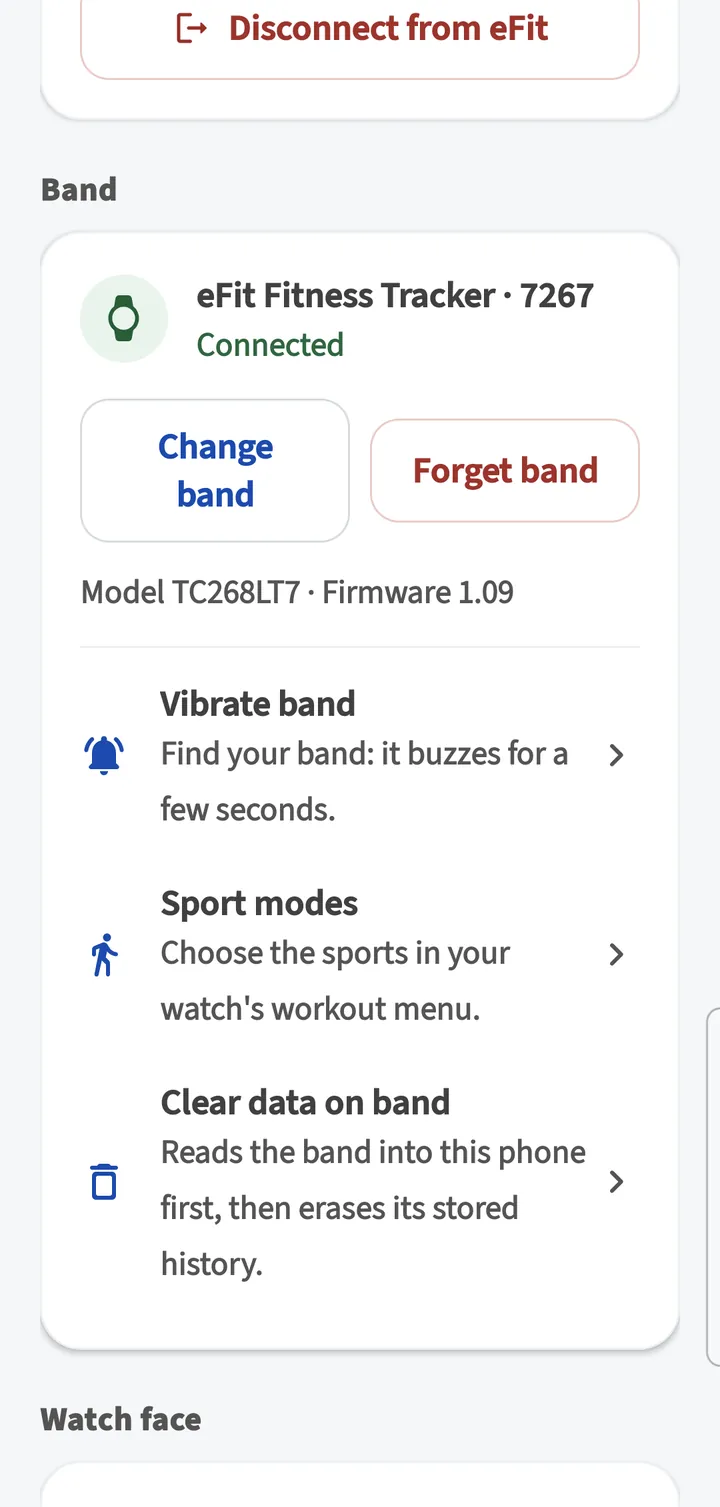
| Band | Change band, Forget band, model and firmware, Vibrate band, Sport modes, Clear data on band. |
| Watch face | Track, Midnight, Date or Stats, then Put on my watch. |
| Alerts on your watch | Phone alerts, Phone calls, each messaging app, Send a test alert. |
| Move reminder | Off, 30, 60 or 90 minutes, weekdays 8 AM to 5 PM. |
| Sync with eFit | Live, Every 15 minutes, Every hour or Battery saver. |
| Units | Metric or US, and the watch's °F or °C. |
| Weather on your watch | ZIP code for the watch's weather. |
| About you | Height, weight, age and sex. |
| Help | Copy troubleshooting info for a help request, and open-source licenses. |
Clear data on band
This reads the last 7 days from your band into the phone first, then erases the band's stored steps, heart rate, sleep and workouts. Use it before you give the watch to someone else.
Using a new phone or a new watch
- New phone: install eFit, connect your band, and connect your account with a new pairing code. Your old phone can stay connected; you can remove it on the Connect the eFit app page under Connected phones.
- New watch: open Settings › Band › Change band and connect the new one.
- Stop using this phone: Settings › Disconnect from eFit. Days not sent yet stay saved for that account.
Chapter 18
Your privacy
eFit sends your class only what it needs to count your activity.
| Information | Where it goes |
|---|---|
| Steps, distance, calories, heart rate and workouts | Sent to your eFit account so your class can count your activity. |
| Sleep and blood oxygen | Stay on your phone. |
| Height, weight, age and sex | Stay on your phone and your watch, for calorie and distance estimates. |
| Calls, messages and contacts | Passed from your phone to your watch only. Never stored or uploaded. |
| Foods you log | Saved to your eFit account and shown on the Nutrition page. |
The app has no ads and does not use your location. Read the full policy at efit.health/privacy.php. To delete your account and data, visit efit.health/account-deletion.php.
Chapter 19
Fix a problem
Find what you see, then follow the steps. Almost every problem is solved by keeping the watch charged and close to the phone, then tapping Sync now.
The app cannot find my watch.
Charge the watch and tap its touch key to wake it. Hold it next to the phone and tap Search again. If you paired it in Android's Bluetooth settings, remove it there. Close the KeepHealth app if you use it, since the watch connects to one app at a time.
“Bluetooth permission is off.”
Tap Open settings, then Permissions, and allow Nearby devices. Come back to eFit and tap Find my band.
The Band tile says Not connected.
The watch is out of range or Bluetooth is off. Bring the watch close, turn on Bluetooth and tap Sync now. The app connects again on its own.
“Your band stopped answering. Keep it next to the phone and tap Sync now.”
Keep the watch next to the phone and tap Sync now. If it happens again, close eFit completely (swipe it away in Recent apps), open it again and wait for the Band tile to say Connected.
I don't know my eFit password.
On the efit.health sign-in page, tap Forgot your username or password? and follow the steps. Connecting the app needs your eFit username and password, even if you usually open eFit from Canvas or D2L.
“That code is not valid or has expired. Get a new code on efit.health.”
Codes work once and last 10 minutes. On the Connect the eFit app page, tap Get a new code and use it right away.
“Add your date of birth on efit.health first.”
Sign in at efit.health, add your date of birth to your profile, then tap Connect in the app again. The same code still works if it has not expired.
“This eFit account cannot use the eFit app.”
The eFit app is for students 13 and older. Your instructor can record your activity credit another way.
“Only the student can connect a phone.”
That browser is signed in to a staff account. Tap Sign out and sign in as a student and use your own account.
The app shows someone else's name on Is this you?
Tap Not me. Sign out of efit.health in your browser, sign in with your own account and get a new code.
Days are waiting for internet.
Connect to Wi-Fi or mobile data. The days send on their own. Tap Send saved data now to send them right away.
“Reconnect your eFit account.”
The connection ends after 180 days, or when the phone was disconnected on efit.health. Tap Reconnect and use a new pairing code. Days saved on the phone send right after.
My steps on eFit are lower than on the watch.
Tap Sync now and wait for Up to date. Check that your grade comes from the watch under Settings › eFit account. eFit counts the watch from the day you chose it for your grade.
Heart rate shows -- or Measure now gives no reading.
Wear the watch snug, about one finger above your wrist bone, with the sensor against your skin. Sit still while it measures. If the watch is off your wrist, it reads 0 and the app shows --.
Sleep says No sleep yet.
Wear the watch to bed and sync in the morning. Sleep for last night shows after the first sync of the day.
I don't get calls or messages on my watch.
Check Phone alerts and the app's switch under Alerts on your watch. If it says Allow notification access to finish, turn on eFit in Android's notification access. Tap Let eFit run in the background. Then tap Send a test alert. After an app update, open eFit once so Android reconnects alerts.
The watch face did not change.
Keep the watch close and tap Put on my watch again. If you see Your band stopped answering, wait for the Band tile to say Connected and try once more.
A notification says “eFit is syncing your watch.”
That is Live sync. Choose Every hour under Settings › Sync with eFit if you would rather not see it.
“Your activity has not reached eFit for 2 days.”
Open eFit with the watch nearby and tap Sync now. Check that you have internet.
The watch will not charge.
Take the strap all the way off so the plug goes fully into the port. Try it the other way up, then another USB port or a wall adapter. Make sure the plug is clean and dry.
The battery runs down fast.
Choose Every hour sync, turn off alerts for busy apps, and set Move reminder to Off if you do not use it.
Saved for a previous account.
Those days were read while another student's account was connected. They send only if that account connects again. Tap Delete if they are not yours.
Still stuck?
In the app, open Settings › Help › Copy troubleshooting info. It copies your app and phone version, the band connection and your sync status, with no health data. Paste it into a request at the eFit Help Desk (efit.health/helpdesk) so we can help on the first reply.
Chapter 20
Care, specifications and safety
Taking care of your watch
- Wipe the watch and the sensor with a soft, damp cloth. Dry it before charging.
- Keep it away from strong chemicals, sunscreen and insect repellent, which can wear the strap.
- Do not open the watch or try to replace the battery.
- Keep the watch out of extreme heat, such as a car in summer.
Specifications
| Model | C68L (eFit Fitness Tracker) |
|---|---|
| Display | 0.96 in. color touch-key display, 80 × 160 pixels |
| Size and weight | 38 × 21 × 12 mm body, about 22 g |
| Battery | 120 mAh rechargeable lithium polymer, 3.85 V |
| Battery life | Up to 12 days in typical use, up to 30 days on standby |
| Charging | USB plug built into the watch (take off the strap to charge) |
| Water resistance | IP67 |
| Wireless | Bluetooth Low Energy 5.0, range up to about 10 m |
| Sensors | Optical heart-rate sensor, motion sensor |
| Storage | 7 days of activity |
| Phone | Android 9 or newer, with the eFit app |
Safety
- The eFit watch and app are for general fitness and wellness. They are not medical devices and do not diagnose, treat or prevent any condition. Talk to a health professional before starting an exercise program.
- Stop wearing the watch if your skin becomes red or irritated, and wear it looser or on the other wrist.
- The battery is not replaceable. Recycle the watch with electronics; do not put it in household trash.
Regulatory information
FCC ID: 2BXIH-C68L. This device complies with Part 15 of the FCC Rules. Operation is subject to the following two conditions: (1) this device may not cause harmful interference, and (2) this device must accept any interference received, including interference that may cause undesired operation. Changes or modifications not expressly approved by the party responsible for compliance could void the user's authority to operate the equipment.
CE marked under the Radio Equipment Directive 2014/53/EU and RoHS 2011/65/EU. The crossed-out bin symbol means the watch and its battery must be recycled separately from household waste.